This book represents years of practical experience solving real automation challenges. The tools, patterns, and approaches described have been deployed and refined through countless iterations.
This book is written for everyone who wants to truly understand test automation, not just copy-paste code that works "sometimes." Whether you're:
If you've ever wondered:
- "Why does my test pass locally but fail in CI?"
- "What is the browser actually doing when I call click()?"
- "Why can't Selenium find an element that's clearly on the page?"
- "How do websites detect that I'm using automation?"
This book will give you those answers—and more.
Unlike theoretical automation guides that show you the happy path, every chapter in this book is born from real production failures. These aren't academic exercises—they're battle-tested solutions that have been deployed in enterprise environments handling:
"Automation should be invisible."
When automation works perfectly, nobody notices. When it fails, everyone suffers. The goal isn't to write tests—it's to create a safety net that catches defects before they reach production while staying out of everyone's way.
This book embraces three core principles:
This book isn’t just about using tools—it’s about understanding the mechanics behind them. We use a suite of specialized open-source tools as a lens to explore the deep internals of how modern automation actually works:
| Tool | Problem It Solves | Category |
|---|---|---|
| Waitless | Flaky tests from race conditions | Stability |
| Project Vandal | Tests that pass but don't catch bugs | Mutation Testing |
| Selenium Teleport | 10+ seconds per login | Authentication |
| SB Stealth Wrapper | Bot detection blocking tests | Stealth |
| Lumos ShadowDOM | Elements hidden in Shadow DOM | Modern Web |
| Visual Guard | Visual regressions missed by DOM tests | Visual Testing |
| Visual Sonar | Automating remote desktops (no DOM) | RPA |
| Selector Scout | Brittle, constantly-breaking selectors | AI |
| Selenium Chatbot Test | Testing streaming AI interfaces | GenAI |
| Pytest-MockLLM | Testing LLM features without API costs | AI Testing |
| pytest-glow-report | Reports stakeholders can understand | Reporting |
| The Sentinel | Autonomous agentic orchestration | Orchestration |
Start with Part I: Foundations. Don't skip Chapter 1 on browser internals—it will save you countless hours of debugging later. Every mysterious error you'll encounter has roots in concepts explained there.
Recommended path: 1. Part I (Foundations) → Part II (Visual Testing) → Part III (Authentication) 2. Then jump to topics as needed
You can scan Part I quickly, but pay attention to the "Deep Dive" sections. Start with whatever chapter addresses your current pain point, then explore related topics.
Use this as a reference guide. The implementation details in each tool chapter can be directly applied to your frameworks. Pay special attention to Part IX (Enterprise Patterns).
Every chapter includes: - 💡 Key Insight boxes highlighting critical concepts - 🔧 Hands-On Exercise with step-by-step solutions - ⚠️ Common Pitfalls that trip up even experienced developers - 🔍 Deep Dive sections for those who want to understand internals - 📋 Quick Reference summaries you can bookmark
Before diving in, ensure you have:
# Python 3.10+ (recommended: 3.11 or 3.12)
python --version  # Should show 3.10+

# pip package manager
pip --version

# Node.js (for some tools)
node --version  # 18.0+ recommended

# Git for version control
git --version
# Option 1: Let Selenium Manager handle it (recommended for beginners)
pip install selenium>=4.10.0  # Selenium 4.10+ has built-in driver management

# Option 2: Manual installation
# Download ChromeDriver matching your Chrome version from:
# https://chromedriver.chromium.org/downloads
# Create a dedicated directory
mkdir automation-playbook-labs
cd automation-playbook-labs

# Create virtual environment
python -m venv venv

# Activate it
# Windows:
venv\Scripts\activate
# Mac/Linux:
source venv/bin/activate

# Install base packages
pip install selenium pytest requests
"You cannot truly master a tool until you understand the substrate it operates on."
Before writing a single line of automation code, you need to understand what's actually happening inside the browser. This knowledge separates automation engineers who can debug any problem from those who copy-paste Stack Overflow answers and hope for the best.
Every automation failure you'll ever encounter traces back to something happening inside the browser. When your test fails with:
ElementNotInteractableException — The browser says the element isn't readyStaleElementReferenceException — The DOM changed while you were looking at itTimeoutException — Something took longer than expectedUnderstanding browser internals transforms these from "random failures" into predictable, fixable problems.
Modern browsers like Chrome are not a single program—they're a collection of processes working together. This architecture was designed for security and stability, but it has profound implications for automation.
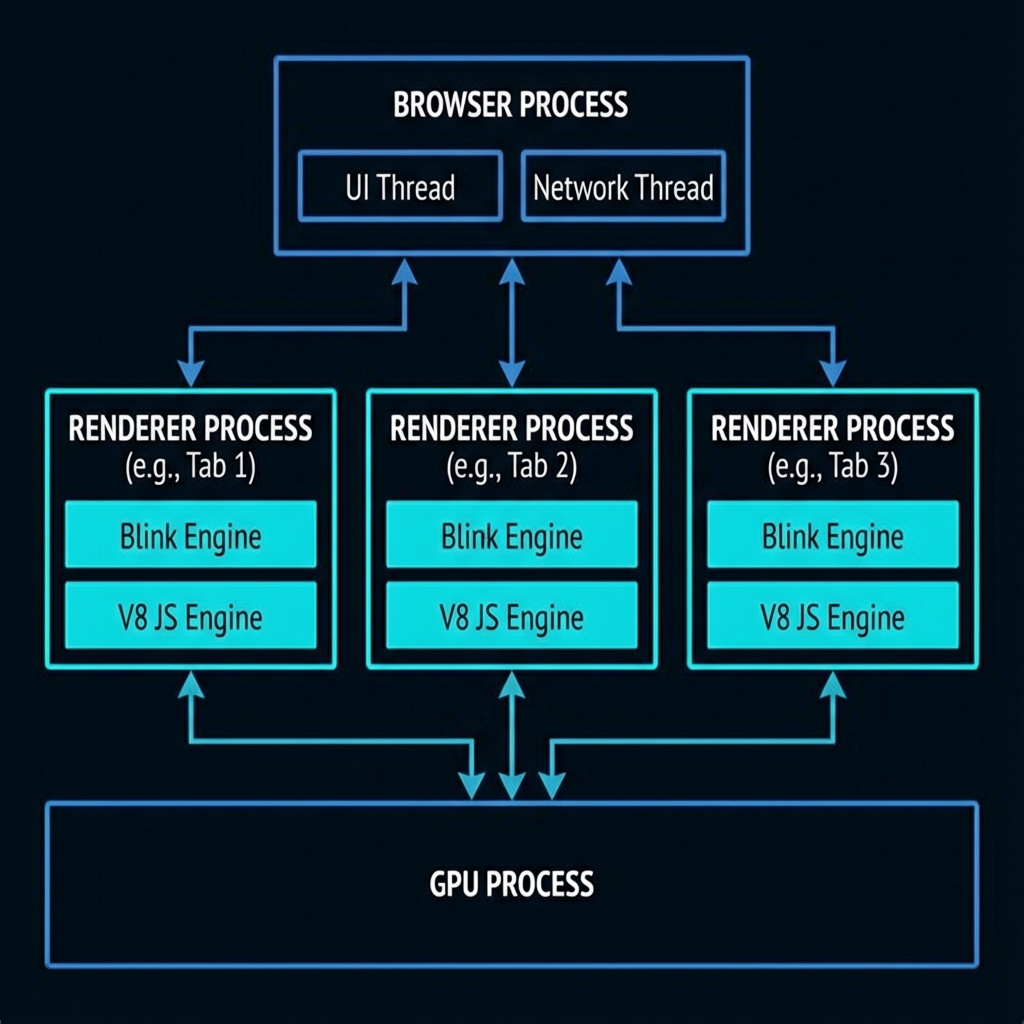
┌─────────────────────────────────────────────────────────────────────┐
│                        BROWSER PROCESS                               │
│  • UI (tabs, address bar, bookmarks)                                │
│  • Network requests                                                  │
│  • Storage management                                                │
│  • Inter-Process Communication (IPC) hub                            │
└────────────┬─────────────────────────────────────────┬──────────────┘
             │                                         │
             ▼                                         ▼
┌────────────────────────────┐          ┌────────────────────────────┐
│     RENDERER PROCESS #1    │          │     RENDERER PROCESS #2    │
│     (Tab 1: example.com)   │          │     (Tab 2: google.com)    │
│  ┌──────────────────────┐  │          │  ┌──────────────────────┐  │
│  │    Blink Engine      │  │          │  │    Blink Engine      │  │
│  │  • HTML Parser       │  │          │  │  • HTML Parser       │  │
│  │  • CSS Engine        │  │          │  │  • CSS Engine        │  │
│  │  • Layout Engine     │  │          │  │  • Layout Engine     │  │
│  └──────────────────────┘  │          │  └──────────────────────┘  │
│  ┌──────────────────────┐  │          │  ┌──────────────────────┐  │
│  │    V8 JavaScript     │  │          │  │    V8 JavaScript     │  │
│  │    Engine            │  │          │  │    Engine            │  │
│  └──────────────────────┘  │          │  └──────────────────────┘  │
    🔍 Deep Dive: V8 Bindings & The DOM Bridge
    JavaScript doesn't "own" the DOM. The DOM lives in the C++ core of the browser engine (Blink). When you call
        document.getElementById(), you're crossing a "bridge" from the JavaScript world (V8) to the C++
        world. This context switching is expensive. In high-frequency automation, hundreds of these crossings occur
        every second, creating a performance bottleneck that can look like network latency.
└────────────────────────────┘          └────────────────────────────┘
             │
             ▼
┌────────────────────────────┐
│       GPU PROCESS          │
│  • Compositing layers      │
│  • WebGL rendering         │
│  • Video decoding          │
└────────────────────────────┘
Key Insight #1: Each tab is isolated
When you open a new browser window or tab in Selenium, you're potentially creating a new renderer process. Cookies, localStorage, and JavaScript state are shared per-origin, but memory and execution are isolated.
Key Insight #2: JavaScript runs in the renderer process
When you call driver.execute_script(), your JavaScript runs in the renderer process—the same place
the website's JavaScript runs. This is why you can access document, window, and the
DOM directly.
Key Insight #3: Network requests go through the browser process
This is why some bot detection techniques work—they can observe network behavior at the browser level, not just at the page level.
When you navigate to a URL, here's what happens inside the browser:
URL Entered → DNS Lookup → TCP Connection → TLS Handshake → HTTP Request → Response
The browser process handles this. The response (HTML, CSS, JS, images) streams back.
<!-- This HTML... -->
<html>
  <body>
    <div id="container">
      <button id="submit">Click Me</button>
    </div>
  </body>
</html>
<!-- ...becomes this DOM tree -->
Document
  └── html
       └── body
            └── div#container
                 └── button#submit
                      └── TextNode: "Click Me"
💡 Key Insight: The DOM is a live tree structure
When you call driver.find_element(By.ID, "submit"), Selenium traverses this tree. If the tree
changes (React re-renders, Ajax loads content), your reference might become "stale."
/* This CSS... */
#container {
  display: flex;
}
button {
  background: blue;
  padding: 10px;
}
/* ...becomes the CSSOM */
StyleSheetList
  └── CSSStyleSheet
       └── #container { display: flex }
       └── button { background: blue; padding: 10px }
The DOM and CSSOM combine to create the Render Tree—only visible elements are included:
RenderTree
  └── RenderBody
       └── RenderDiv (display: flex)
            └── RenderButton (background: blue, padding: 10px)
                 └── RenderText: "Click Me"
💡 Key Insight: Elements with display: none are NOT in the render tree
This is why element.is_displayed() returns False for hidden elements—they literally
don't exist in the visual representation.
The browser calculates the exact position and size of every element:
button#submit:
  x: 150px
  y: 200px
  width: 80px
  height: 40px
⚠️ Common Pitfall: Layout is expensive
Every time the DOM changes, layout might need to recalculate. This is why tests that rapidly modify the DOM can become slow.
Finally, the browser: 1. Paints each layer (turns elements into pixels) 2. Composites layers together (stacking order, transparency) 3. Sends to GPU for display
A common automation mystery: The element is visible, but the click fails. This often happens because of thread contention. The Compositor Thread (which handles scrolling and some animations) is separate from the Main Thread (which handles JS and Layout). If the Main Thread is blocked by a long-running script, the browser can still scroll (compositor), but it cannot process a click (main thread). Automation stability requires the Main Thread to be "idle."
This is the most important concept for understanding flaky tests.
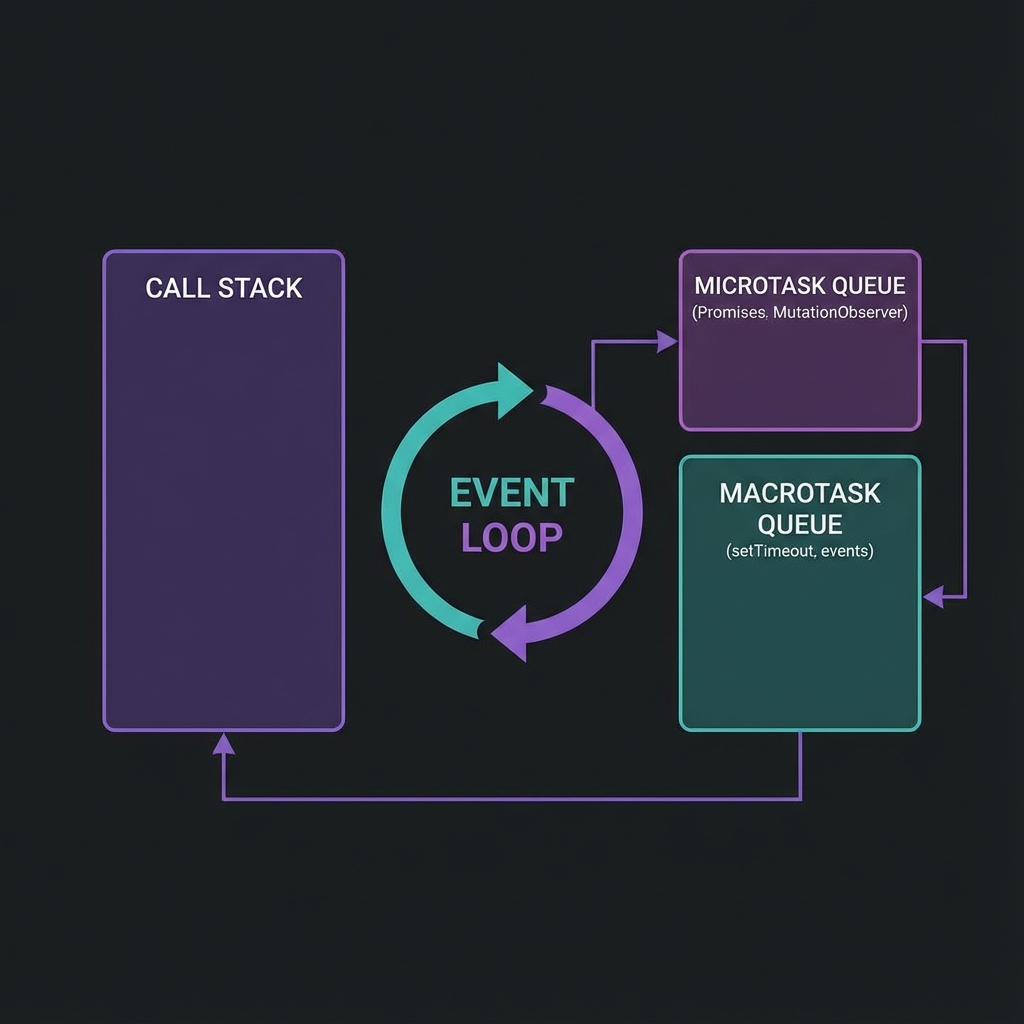
JavaScript in the browser runs on a single thread. There's no true parallelism—everything happens one step at a time. But it doesn't feel single-threaded because of the Event Loop.
┌─────────────────────────────────────────────────────────────────┐
│                         EVENT LOOP                               │
│                                                                  │
│  ┌─────────────────┐    ┌────────────────────────────────────┐  │
│  │   Call Stack    │    │           Task Queues               │  │
│  │                 │    │  ┌──────────────────────────────┐  │  │
│  │  Currently      │◄───│  │ Macrotask Queue              │  │  │
│  │  executing      │    │  │ • setTimeout callbacks       │  │  │
│  │  code           │    │  │ • setInterval callbacks      │  │  │
│  │                 │    │  │ • I/O operations             │  │  │
│  └─────────────────┘    │  │ • UI rendering               │  │  │
│                         │  └──────────────────────────────┘  │  │
│                         │  ┌──────────────────────────────┐  │  │
│                         │  │ Microtask Queue              │  │  │
│                         │  │ • Promise callbacks          │  │  │
│                         │  │ • MutationObserver           │  │  │
│                         │  │ • queueMicrotask()           │  │  │
│                         │  └──────────────────────────────┘  │  │
│                         └────────────────────────────────────┘  │
└─────────────────────────────────────────────────────────────────┘
// Website code
button.addEventListener('click', async () => {
    await fetch('/api/data');  // Network request
    updateUI();  // Updates the DOM
});
When your Selenium test clicks the button:
fetch() is called (goes to microtask queue) ✓This is the #1 cause of flaky tests: assuming synchronous completion.
# ❌ BAD: Assumes synchronous completion
driver.find_element(By.ID, "button").click()
result = driver.find_element(By.ID, "result").text  # May fail!

# ✅ GOOD: Waits for the expected outcome
driver.find_element(By.ID, "button").click()
WebDriverWait(driver, 10).until(
    EC.text_to_be_present_in_element((By.ID, "result"), "Success")
)
┌──────────────────────────────────────────────────────────────────┐
│                     PAGE LOADING TIMELINE                         │
├──────────────────────────────────────────────────────────────────┤
│                                                                   │
│  Navigation Start                                                 │
│       │                                                           │
│       ▼                                                           │
│  HTML starts downloading ─────────────────────┐                   │
│       │                                       │                   │
│       ▼                                       ▼                   │
│  HTML fully parsed ◄─── DOMContentLoaded event fires              │
│       │                                                           │
│       ▼                                                           │
│  CSS, JS, Images loading ─────────────────────┐                   │
│       │                                       │                   │
│       ▼                                       ▼                   │
│  All resources loaded ◄───── load event fires                     │
│       │                                                           │
│       ▼                                                           │
│  Lazy resources, AJAX ─────────────────────────────┐              │
│       │                                            │              │
│       ▼                                            ▼              │
│  Fully interactive ◄───── NO STANDARD EVENT!                     │
│                                                                   │
└──────────────────────────────────────────────────────────────────┘
| Event | What's Ready | What's NOT Ready |
|---|---|---|
DOMContentLoaded |
HTML parsed, DOM built | CSS, images, fonts, external JS |
load |
All initial resources | Lazy-loaded content, AJAX data |
| (no event) | Everything | — |
Selenium's driver.get(url) waits for the load event by default. But modern single-page
applications often:
load)Your test starts after load, but the UI you need to interact with hasn't rendered yet!
# Strategy 1: Wait for specific elements
driver.get("https://example.com")
WebDriverWait(driver, 20).until(
    EC.presence_of_element_located((By.ID, "main-content"))
)

# Strategy 2: Wait for network idle (using JavaScript)
driver.get("https://example.com")
driver.execute_script("""
    return new Promise(resolve => {
        if (document.readyState === 'complete') {
            setTimeout(resolve, 500);  // Small buffer for AJAX
        } else {
            window.addEventListener('load', () => setTimeout(resolve, 500));
        }
    });
""")

# Strategy 3: Use Waitless (covered in Chapter 3)
from waitless import stabilize
driver = stabilize(webdriver.Chrome())
driver.get("https://example.com")  # Automatically waits for full stability
Understanding this communication protocol helps debug "weird" failures.
┌─────────────────┐     HTTP/REST      ┌─────────────────┐
│                 │─────────────────────│                 │
│   Your Test     │   {"using": "id",  │   ChromeDriver  │
│   (Python)      │    "value": "btn"} │   (Executable)  │
│                 │◄────────────────────│                 │
└─────────────────┘   {"value": {...}} └────────┬────────┘
                                                │
                                                │ Chrome DevTools
                                                │ Protocol (CDP)
                                                │
                                        ┌───────▼────────┐
                                        │                │
                                        │     Chrome     │
                                        │    Browser     │
                                        │                │
                                        └────────────────┘
find_element()element = driver.find_element(By.ID, "submit-button")
json
   POST /session/{sessionId}/element
   {"using": "css selector", "value": "#submit-button"}
document.querySelector("#submit-button")json
{"value": {"element-6066-11e4-a52e-4f735466cecf": "abc123"}}
WebElement objectThat "abc123" is a reference ID. If the DOM element is removed and re-added (common
in React/Vue/Angular), the old reference ID is invalid—hence StaleElementReferenceException.
Selenium 4 introduced direct CDP access, unlocking powerful capabilities:
# Traditional WebDriver (limited)
driver.get("https://example.com")

# Direct CDP access (powerful)
driver.execute_cdp_cmd("Network.enable", {})
driver.execute_cdp_cmd("Network.setExtraHTTPHeaders", {
    "headers": {"X-Custom-Header": "my-value"}
})

# Listen to network events
driver.execute_cdp_cmd("Network.enable", {})
# Now you can capture all network requests/responses
| Domain | Capabilities |
|---|---|
Network |
Intercept requests, mock responses, throttle bandwidth |
DOM |
Query/modify DOM, track mutations |
Performance |
Collect metrics, trace execution |
Console |
Capture console.log output |
Emulation |
Spoof device, geolocation, timezone |
Every Selenium command (e.g., element.is_displayed()) is an out-of-process network call. Even
on localhost, there is overhead for serialization, network transmission, and deserialization. When you put a
find_element call inside a tight loop, you're not just waiting for the browser; you're paying a
"tax" of 5-10ms per call just for the communication protocol itself. This is why batching interactions in
JavaScript (using execute_script) is often 10x faster for complex tasks.
Let's apply what we've learned:
from selenium import webdriver
from selenium.webdriver.common.by import By
import time

driver = webdriver.Chrome()

# 1. Navigate and observe loading
driver.get("https://example.com")
print(f"Page load complete. Title: {driver.title}")

# 2. Explore the DOM
dom_html = driver.execute_script("return document.documentElement.outerHTML.length")
print(f"Total DOM size: {dom_html} characters")

# 3. Check event loop status
pending_tasks = driver.execute_script("""
    return {
        readyState: document.readyState,
        animationsPending: document.getAnimations().filter(a => a.playState === 'running').length
    }
""")
print(f"Document state: {pending_tasks['readyState']}")
print(f"Running animations: {pending_tasks['animationsPending']}")

# 4. Monitor a mutation
driver.execute_script("""
    window.__mutations = [];
    const observer = new MutationObserver(mutations => {
        mutations.forEach(m => window.__mutations.push(m.type));
    });
    observer.observe(document.body, {childList: true, subtree: true});
""")

# Make a DOM change
driver.execute_script("document.body.innerHTML += '<div>Test</div>'")

mutations = driver.execute_script("return window.__mutations")
print(f"Mutations observed: {mutations}")

driver.quit()
Expected Output:
Page load complete. Title: Example Domain
Total DOM size: 1234 characters
Document state: complete
Running animations: 0
Mutations observed: ['childList']
| Concept | Key Takeaway |
|---|---|
| Multi-Process Architecture | Each tab runs in isolation; crashes don't affect other tabs |
| Rendering Pipeline | HTML → DOM → CSSOM → Render Tree → Layout → Paint |
| Event Loop | Single-threaded but async; explains why clicks don't wait |
| Page Load Events | load event fires before AJAX content is ready |
| WebDriver Protocol | HTTP/JSON commands translated to CDP |
| Stale Elements | DOM changes invalidate element references |
Coming up next: Now that you understand the platform, let's explore why tests fail unpredictably—and how to analyze the root cause.
Flaky tests are the silent killers of automation credibility. A test that passes on Monday, fails on Tuesday, and passes again on Wednesday—with zero code changes—destroys trust faster than any bug in production.
Consider these statistics from real enterprise environments:
| Metric | Impact |
|---|---|
| Developer time investigating false failures | 4-6 hours/week per engineer |
| Pipeline re-runs due to flaky tests | 15-25% of all runs |
| Confidence in test results | Drops below 60% |
| Time to detect real bugs | Increases by 40% |
When developers stop trusting test results, they stop looking at them. The automation suite becomes expensive decoration.
Every flaky test has a deterministic root cause. The test isn't "randomly" failing—it's failing because of specific conditions that aren't always present. Your job is to find those conditions.
Sometimes the browser itself stops responding for a few milliseconds. This happens during Garbage Collection (GC)—when V8 pauses execution to clean up memory—or Just-In-Time (JIT) Compilation. These "micro-stutters" are nearly invisible to humans but can cause a race condition to trigger in automation if the browser pauses exactly when a click is being sent. Stable automation builds in a small buffer for these unavoidable internal pauses.
The browser and test script operate at different speeds. The script says "click the button" before the button is ready.
Symptoms:
- ElementNotInteractableException
- StaleElementReferenceException
- Tests pass locally, fail in CI
Example of the Problem:
# This code has a race condition
driver.get("https://app.example.com/dashboard")
driver.find_element(By.ID, "submit-btn").click()  # May fail!
The page is still loading when the click executes. The element might: - Not exist in the DOM yet - Exist but be covered by a loading overlay - Exist but be outside the viewport - Exist but have event handlers not yet attached
🔍 Deep Dive: Why Event Handlers Aren't Attached Immediately
<button id="submit-btn">Submit</button>
<script>
    // This runs after the button exists in DOM
    document.getElementById('submit-btn').addEventListener('click', handleClick);
</script>
The button is in the DOM immediately, but the event listener is only attached when the
<script> executes. If your test clicks before the script runs, nothing happens!
Solution Pattern:
from selenium.webdriver.support.ui import WebDriverWait
from selenium.webdriver.support import expected_conditions as EC

# Wait for element to be clickable (visible + enabled)
wait = WebDriverWait(driver, 10)
button = wait.until(EC.element_to_be_clickable((By.ID, "submit-btn")))
button.click()
API calls complete at different speeds. A dashboard that loads in 200ms locally might take 2 seconds in CI.
Symptoms: - Tests timeout in CI but pass locally - Intermittent failures correlate with time of day - Tests fail more often on shared CI infrastructure
Why CI Is Different:
| Factor | Local Development | CI Environment |
|---|---|---|
| Network Latency | Near-zero (localhost) | Variable (shared infra) |
| CPU | Dedicated | Shared with other jobs |
| Memory | Abundant | Often limited |
| Browser Startup | Instant (browser cached) | Cold start each time |
Solution Pattern:
# ❌ BAD: Fixed timeout too short
wait = WebDriverWait(driver, 3)

# ✅ GOOD: Generous timeout with early exit
wait = WebDriverWait(driver, 30)  # Will return early if condition met
element = wait.until(EC.presence_of_element_located((By.ID, "data-loaded")))
CSS transitions and JavaScript animations don't block Selenium. The test clicks where the button will be, not where it is.
Example:
.modal {
    transition: transform 0.3s ease-in-out;
    transform: translateY(-100%);
}
.modal.open {
    transform: translateY(0);
}
The modal slides in over 300ms. Selenium doesn't wait for CSS transitions.
🔍 Deep Dive: How Animations Break Clicks
opacity > 0 and display != none
Solution Pattern:
# Wait for all animations to complete
def wait_for_animations(driver):
    driver.execute_script("""
        return new Promise(resolve => {
            const checkAnimations = () => {
                const animations = document.getAnimations();
                const running = animations.filter(a => a.playState === 'running');
                if (running.length === 0) {
                    resolve();
                } else {
                    requestAnimationFrame(checkAnimations);
                }
            };
            checkAnimations();
        });
    """)

# Usage
driver.find_element(By.CLASS_NAME, "open-modal").click()
wait_for_animations(driver)
modal_button = driver.find_element(By.ID, "modal-confirm")
modal_button.click()
Solution Patterns:
# 1. Mock external services
@pytest.fixture
def mock_payment_gateway():
    with responses.RequestsMock() as rsps:
        rsps.add(
            responses.POST,
            "https://api.stripe.com/v1/charges",
            json={"id": "ch_test123", "status": "succeeded"},
            status=200
        )
        yield rsps

# 2. Isolate database
@pytest.fixture
def isolated_db_session():
    # Create unique schema per test
    schema_name = f"test_{uuid.uuid4().hex[:8]}"
    create_schema(schema_name)
    yield schema_name
    drop_schema(schema_name)

# 3. Control time
from freezegun import freeze_time

@freeze_time("2024-06-15 14:30:00")
def test_discount_during_sale_period():
    # Time-sensitive logic now predictable
    assert calculate_discount() == 0.20
Symptoms: - Failures cluster at certain times (when CI is busy) - Memory-related crashes - "Chrome not reachable" errors
Solution Patterns:
# 1. Request dedicated CI resources
# .github/workflows/test.yml
jobs:
  test:
    runs-on: ubuntu-latest
    timeout-minutes: 30
    env:
      CHROME_ARGS: "--disable-dev-shm-usage --no-sandbox"

# 2. Limit parallel browser instances
# pytest.ini
[pytest]
addopts = -n 4  # Max 4 parallel workers

# 3. Add resource monitoring
import psutil

def check_system_resources():
    memory = psutil.virtual_memory()
    if memory.percent > 90:
        logging.warning(f"High memory usage: {memory.percent}%")
        # Consider failing fast rather than flaking
time.sleep() - The Worst Fixdriver.get("https://app.example.com/dashboard")
time.sleep(5) # "This should be enough time"
driver.find_element(By.ID, "submit-btn").click()
Problems: - Too slow: You wait 5 seconds even when the page loads in 500ms - Still flaky: Sometimes 5 seconds isn't enough - Compounds: 100 tests × 3 sleeps each × 5 seconds = 25 minutes wasted
from selenium.webdriver.support.ui import WebDriverWait
from selenium.webdriver.support import expected_conditions as EC

wait = WebDriverWait(driver, 10)
element = wait.until(
    EC.element_to_be_clickable((By.ID, "submit-btn"))
)
element.click()
Improvements: - Returns as soon as condition is met - Has a timeout for failure cases - More descriptive failures
Remaining Problems: - Doesn't wait for network calls to complete - Doesn't wait for animations to finish - Doesn't detect JavaScript-driven readiness - Requires explicit waits everywhere in code
class all_animations_complete:
    def __call__(self, driver):
        return driver.execute_script("""
            return document.getAnimations().every(a =>
                a.playState === 'finished' || a.playState === 'idle'
            );
        """)

wait.until(all_animations_complete())
Problems: - Must remember to add this everywhere - Doesn't handle network calls - Complex to maintain across team
Before jumping to solutions, you need to diagnose the specific cause of flakiness.
Run the flaky test 50+ times and analyze patterns:
# pytest_flaky_tracker.py
import pytest
import json
from datetime import datetime

RESULTS_FILE = "flaky_analysis.json"

@pytest.hookimpl(hookwrapper=True)
def pytest_runtest_makereport(item, call):
    outcome = yield
    report = outcome.get_result()

    if call.when == "call":
        result = {
            "test": item.name,
            "timestamp": datetime.now().isoformat(),
            "passed": report.passed,
            "duration": report.duration,
            "error": str(report.longrepr) if report.failed else None
        }

        # Append to results file
        try:
            with open(RESULTS_FILE, "r") as f:
                data = json.load(f)
        except FileNotFoundError:
            data = []

        data.append(result)

        with open(RESULTS_FILE, "w") as f:
            json.dump(data, f, indent=2)
Run analysis:
for i in {1..50}; do pytest test_flaky.py --tb=short; done
python analyze_flaky.py  # Analyze patterns
@pytest.fixture
def driver(request):
    driver = webdriver.Chrome()
    yield driver

    # Capture screenshot on failure
    if request.node.rep_call.failed:
        screenshot_dir = Path("screenshots")
        screenshot_dir.mkdir(exist_ok=True)

        filename = f"{request.node.name}_{datetime.now():%Y%m%d_%H%M%S}.png"
        driver.save_screenshot(str(screenshot_dir / filename))

    driver.quit()

@pytest.hookimpl(tryfirst=True, hookwrapper=True)
def pytest_runtest_makereport(item, call):
    outcome = yield
    rep = outcome.get_result()
    setattr(item, f"rep_{rep.when}", rep)
def enable_network_logging(driver):
    driver.execute_cdp_cmd("Network.enable", {})

def get_pending_requests(driver):
    # This requires more complex CDP subscription setup
    logs = driver.execute_script("""
        return window.performance.getEntriesByType('resource')
            .filter(e => e.responseEnd === 0)
            .map(e => e.name);
    """)
    return logs
| Flakiness Category | Percentage | Primary Solution |
|---|---|---|
| Race Conditions | 40% | Explicit waits for expected state |
| Network Variability | 25% | Generous timeouts, network mocking |
| Animation Interference | 15% | Wait for getAnimations() to settle |
| External Dependencies | 10% | Mock services, isolate data |
| Resource Contention | 10% | Dedicated resources, monitoring |
The Ultimate Solution: In the next chapter, we'll introduce Waitless, which addresses race conditions, network variability, AND animation interference automatically—with no code changes required.
Instead of telling Selenium when to wait, Waitless instruments the browser itself to detect when waiting is no longer needed.
Traditional approaches ask: "What should I wait for?"
Waitless asks: "What signals indicate the page is stable?"
The four signals of stability: 1. DOM settled — No elements being added/removed/modified 2. Network idle — No pending HTTP requests 3. Animations complete — No CSS or JavaScript animations running 4. Shadow Elements detected — Full support for encapsulated Shadow DOM stability
When all three are true, the page is ready for interaction.
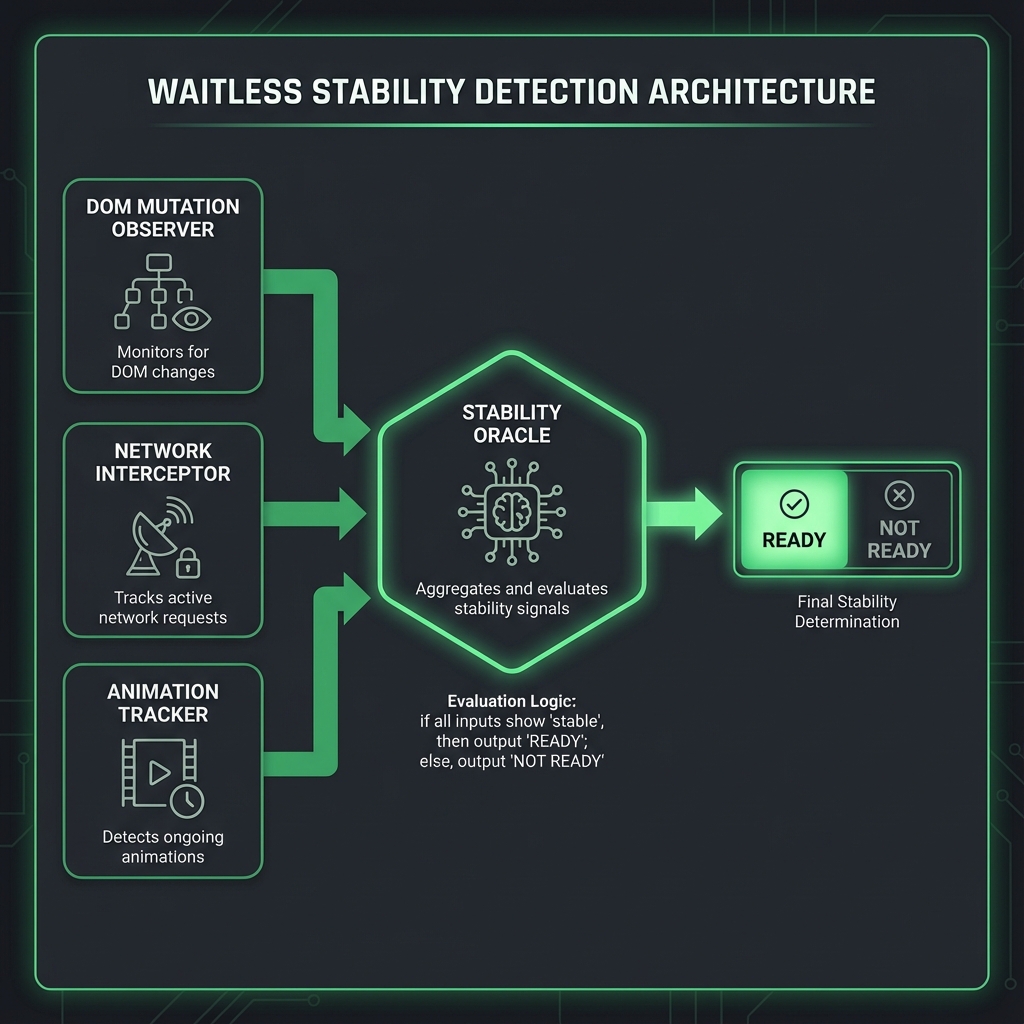
┌─────────────────────────────────────────────────────────────────┐
│                      YOUR TEST CODE                              │
│  driver.find_element(By.ID, "btn").click()                      │
└─────────────────────────────────────────────────────────────────┘
                              │
                              ▼
┌─────────────────────────────────────────────────────────────────┐
│                   WAITLESS WRAPPER                               │
│  • Intercepts all WebDriver commands                            │
│  • Injects stability checks before each action                  │
│  • No code changes required in your tests                       │
└─────────────────────────────────────────────────────────────────┘
                              │
                              ▼
┌─────────────────────────────────────────────────────────────────┐
│              BROWSER-SIDE INSTRUMENTATION                        │
│  ┌─────────────────┐ ┌─────────────────┐ ┌─────────────────┐   │
│  │    Mutation     │ │    Network      │ │   Animation     │   │
│  │    Observer     │ │   Interceptor   │ │    Tracker      │   │
│  │                 │ │                 │ │                 │   │
│  │ Watches DOM     │ │ Tracks XHR &    │ │ Monitors CSS &  │   │
│  │ changes via     │ │ Fetch pending   │ │ JS animations   │   │
│  │ MutationObserver│ │ requests        │ │                 │   │
│  └─────────────────┘ └─────────────────┘ └─────────────────┘   │
│                              │                                   │
│                              ▼                                   │
│                    STABILITY ORACLE                              │
│         "Is everything settled? Yes → Proceed"                  │
└─────────────────────────────────────────────────────────────────┘
pip install waitless
from selenium import webdriver
from waitless import stabilize

# Wrap your driver once at the start
driver = stabilize(webdriver.Chrome())

# All subsequent commands automatically wait for stability
driver.get("https://app.example.com")
driver.find_element(By.ID, "dynamic-button").click()  # Stable!
driver.find_element(By.ID, "ajax-loaded-element").send_keys("text")  # Stable!
That's it. No explicit waits. No sleep statements. The driver automatically waits for stability before every action. New in v0.3.0+: Waitless now natively supports Shadow DOM, ensuring stability even within encapsulated web components without extra configuration.
The MutationObserver API watches for changes to the DOM tree:
// Injected by Waitless into the browser
(function() {
    window.__waitless_last_mutation = Date.now();
    window.__waitless_mutation_count = 0;

    const observer = new MutationObserver((mutations) => {
        window.__waitless_mutation_count += mutations.length;
        window.__waitless_last_mutation = Date.now();
    });

    observer.observe(document.body, {
        childList: true,    // Watch for added/removed elements
        subtree: true,      // Watch entire DOM tree
        attributes: true,   // Watch attribute changes
        characterData: true // Watch text content changes
    });
})();
Stability Criteria: No mutations for 100ms (configurable).
Why 100ms? React, Vue, and Angular typically batch multiple DOM updates within a single animation frame (16ms). The 100ms buffer ensures all related updates have completed.
Waitless intercepts XMLHttpRequest and fetch to track pending requests:
// XMLHttpRequest interception
(function() {
    window.__waitless_pending_requests = 0;

    const originalXHROpen = XMLHttpRequest.prototype.open;
    const originalXHRSend = XMLHttpRequest.prototype.send;

    XMLHttpRequest.prototype.open = function(...args) {
        this.__waitless_url = args[1];
        return originalXHROpen.apply(this, args);
    };

    XMLHttpRequest.prototype.send = function(...args) {
        window.__waitless_pending_requests++;

        this.addEventListener('loadend', () => {
            window.__waitless_pending_requests--;
        });

        return originalXHRSend.apply(this, args);
    };

    // Fetch interception
    const originalFetch = window.fetch;
    window.fetch = function(...args) {
        window.__waitless_pending_requests++;

        return originalFetch.apply(this, args)
            .finally(() => {
                window.__waitless_pending_requests--;
            });
    };
})();
Stability Criteria: Zero pending requests.
Tracks CSS animations and JavaScript animations:
(function() {
    window.__waitless_active_animations = 0;

    // CSS Animation tracking
    document.addEventListener('animationstart', () => {
        window.__waitless_active_animations++;
    });

    document.addEventListener('animationend', () => {
        window.__waitless_active_animations--;
    });

    document.addEventListener('transitionstart', () => {
        window.__waitless_active_animations++;
    });

    document.addEventListener('transitionend', () => {
        window.__waitless_active_animations--;
    });
})();

// Web Animations API check
const getActiveAnimations = () => {
    return document.getAnimations().filter(a =>
        a.playState === 'running'
    ).length;
};
Stability Criteria: Zero running animations.
from waitless import stabilize, StabilityConfig

config = StabilityConfig(
    # Timing controls
    mutation_settle_time=100,      # ms to wait after last DOM change
    network_idle_time=50,          # ms to wait after last network request
    animation_settle_time=50,      # ms to wait after last animation

    # Safety limits
    max_wait_time=30000,           # maximum wait time in ms
    poll_interval=50,              # how often to check stability

    # URL filtering (ignore analytics, monitoring, etc.)
    ignore_urls=[
        r".*google-analytics.*",
        r".*googletagmanager.*",
        r".*hotjar.*",
        r".*sentry.*",
        r".*datadog.*"
    ]
)

driver = stabilize(webdriver.Chrome(), config=config)
| Scenario | Adjustment |
|---|---|
| Very slow API responses | Increase max_wait_time |
| Complex animations | Increase animation_settle_time |
| Analytics causing false positives | Add URLs to ignore_urls |
| Need faster feedback | Decrease poll_interval (use cautiously) |
When a test still fails, Waitless provides diagnostic information:
from waitless import get_diagnostics

# After a test failure, check what was unstable
diagnostics = get_diagnostics(driver)

print(f"Pending network requests: {diagnostics['pending_requests']}")
print(f"Last mutation age: {diagnostics['ms_since_last_mutation']}ms")
print(f"Active animations: {diagnostics['active_animations']}")
print(f"Blocking URLs: {diagnostics['blocking_urls']}")
Example output for a failing test:
Pending network requests: 2
Last mutation age: 15ms
Active animations: 0
Blocking URLs: ['/api/user/profile', '/api/notifications']
This tells you the page wasn't stable because two API calls were still pending.
Before Waitless:
Test Suite: checkout_flow (5 tests)
├── test_add_to_cart        PASSED
├── test_update_quantity    FAILED (StaleElementReference)
├── test_apply_coupon       PASSED
├── test_checkout           FAILED (ElementNotInteractable)
└── test_payment            PASSED

Run 1: 60% pass rate
Run 2: 80% pass rate
Run 3: 40% pass rate
Average: 60% (Expected: 100%)
Re-runs required: 3-4 per CI pipeline
After Waitless:
Test Suite: checkout_flow (5 tests)
├── test_add_to_cart        PASSED
├── test_update_quantity    PASSED
├── test_apply_coupon       PASSED
├── test_checkout           PASSED
└── test_payment            PASSED

Run 1-100: 100% pass rate
Flaky failures eliminated: 100%
Re-runs required: 0
If your app uses long-polling or maintains open WebSocket connections, Waitless may wait indefinitely for "network idle."
Solution:
config = StabilityConfig(
    ignore_urls=[
        r".*socket.*",
        r".*poll.*",
        r".*long-poll.*"
    ]
)
Loading spinners and animated backgrounds never "complete."
Solution:
# Waitless ignores animations on elements with these classes
config = StabilityConfig(
    ignore_animation_selectors=[
        ".loading-spinner",
        ".animated-background",
        "[data-infinite-animation]"
    ]
)
Google Analytics, Hotjar, and other analytics tools make constant requests.
Solution:
config = StabilityConfig(
    ignore_urls=[
        r".*google-analytics.*",
        r".*googletagmanager.*",
        r".*hotjar.*",
        r".*segment.*"
    ]
)
Create a test that demonstrates Waitless in action:
from selenium import webdriver
from selenium.webdriver.common.by import By
from waitless import stabilize, StabilityConfig, get_diagnostics
import time

# Setup with custom config
config = StabilityConfig(
    mutation_settle_time=200,  # Extra buffer for this exercise
    max_wait_time=10000
)

driver = stabilize(webdriver.Chrome(), config=config)

try:
    # Test 1: Dynamic content loading
    driver.get("https://jsonplaceholder.typicode.com/")

    # By the time this line runs, the page is guaranteed stable
    title = driver.find_element(By.TAG_NAME, "h1").text
    print(f"✓ Page loaded. Title: {title}")

    # Check what Waitless detected
    diagnostics = get_diagnostics(driver)
    print(f"  Stability achieved in {diagnostics['total_wait_time']}ms")

    # Test 2: Navigating to a different page
    driver.get("https://httpbin.org/html")
    content = driver.find_element(By.TAG_NAME, "p").text[:50]
    print(f"✓ Second page loaded. Content preview: {content}...")

    print("\n✅ All tests passed with automatic stability detection!")

finally:
    driver.quit()
| Feature | Benefit |
|---|---|
| Automatic stability detection | No manual waits needed |
| DOM mutation tracking | Catches React/Vue re-renders |
| Network request tracking | Waits for AJAX to complete |
| Animation awareness | Prevents mid-animation clicks |
| Zero code changes | Works with existing tests |
| Configurable thresholds | Tune for your app's behavior |
Key Takeaway: Waitless shifts the waiting logic from your tests to the browser itself. Instead of guessing when to wait, it observes actual browser activity and proceeds only when truly stable.
Coming up next: Now that we've eliminated flakiness in functional tests, let's tackle visual testing—because a button working isn't the same as a button looking right.
"A user doesn't interact with the DOM—they interact with pixels. Test accordingly."
Functional tests verify that buttons click and forms submit. They don't verify that: - The button is visible and properly styled - Text is readable (not white on white) - Layout hasn't shifted unexpectedly - Mobile responsive design still works - CSS didn't accidentally hide critical elements
A user sees pixels, not DOM elements. Visual testing validates what users actually experience.
| Bug Type | Functional Test Result | User Experience |
|---|---|---|
| Button moved 200px left | ✅ PASS (still clickable) | "Where's the buy button?" |
| Text color matches background | ✅ PASS (text exists in DOM) | "I can't read anything!" |
| Modal renders behind overlay | ✅ PASS (elements exist) | "The site is frozen!" |
| Font failed to load | ✅ PASS (text displays) | "This looks unprofessional" |
| Mobile layout broken | ✅ PASS (desktop tested) | 50% of users can't use site |
Traditional visual testing compares screenshots pixel-by-pixel:
# Naive approach
from PIL import ImageChops

def compare_images(baseline, current):
    diff = ImageChops.difference(baseline, current)
    return diff.getbbox() is None  # True if identical
Problems with this approach: - Anti-aliasing differences across browsers/OS - Sub-pixel rendering variations - Font smoothing differences (Mac vs Windows) - System clock visible in screenshots - Dynamic content (usernames, timestamps) - Result: Constant false positives
Two images can be: - Pixel-different but visually identical (anti-aliasing variations) - Pixel-similar but visually different (subtle color shift across entire page)
We need algorithms that match human perception, not bit comparison.
Visual Guard uses perceptual comparison algorithms that mimic how humans see:
SSIM doesn't compare pixels—it compares the structure of images:
SSIM analyzes three components:
1. Luminance (l) - Overall brightness comparison
2. Contrast (c) - Variation in brightness
3. Structure (s) - Patterns and edges

Final Score = l^α × c^β × s^γ
Where α, β, γ are weights (typically all 1)
🔍 Deep Dive: How SSIM Works
┌─────────────────────────────────────────────────────────────────┐
│                    SSIM COMPARISON PROCESS                       │
├─────────────────────────────────────────────────────────────────┤
│                                                                  │
│  BASELINE IMAGE              CURRENT IMAGE                       │
│  ┌─────────────────┐         ┌─────────────────┐                │
│  │ ░░░░░░░░░░░░░░ │         │ ░░░░░░░░░░░░░░ │                │
│  │ ░░▓▓▓▓▓▓▓▓░░░░ │         │ ░░▓▓▓▓▓▓▓▓░░░░ │                │
│  │ ░░▓▓▓▓▓▓▓▓░░░░ │         │ ░░▓▓▓▓▓▓▓▓░░░░ │                │
│  │ ░░░░░░░░░░░░░░ │         │ ░░░░░░░░░░░░░░ │                │
│  └─────────────────┘         └─────────────────┘                │
│           │                          │                          │
│           └──────────┬───────────────┘                          │
│                      ▼                                          │
│         ┌─────────────────────┐                                 │
│         │  For each window:   │                                 │
│         │  • Mean (μ)         │                                 │
│         │  • Variance (σ²)    │                                 │
│         │  • Covariance (σxy) │                                 │
│         └─────────────────────┘                                 │
│                      │                                          │
│                      ▼                                          │
│         ┌─────────────────────┐                                 │
│         │  Calculate SSIM:    │                                 │
│         │  (2μxμy + C1)(2σxy + C2)                              │
│         │  ─────────────────────────                            │
│         │  (μx² + μy² + C1)(σx² + σy² + C2)                     │
│         └─────────────────────┘                                 │
│                      │                                          │
│                      ▼                                          │
│              SSIM Score: 0.97                                   │
│              (1.0 = identical, 0.0 = completely different)      │
│                                                                  │
└─────────────────────────────────────────────────────────────────┘
Why SSIM is better for visual testing: - Ignores minor anti-aliasing differences (structure preserved) - Detects layout shifts (structure changed) - Handles slight color variations gracefully - Matches human perception of "same" vs "different"
pHash creates a "fingerprint" of the image that's resistant to minor changes:
# How pHash works conceptually
def perceptual_hash(image):
    # 1. Resize to small square (32x32)
    small = resize(image, 32, 32)

    # 2. Convert to grayscale
    gray = grayscale(small)

    # 3. Apply Discrete Cosine Transform (DCT)
    dct = discrete_cosine_transform(gray)

    # 4. Keep only low-frequency components (top-left 8x8)
    low_freq = dct[:8, :8]

    # 5. Compute average (excluding DC component)
    avg = average(low_freq[1:])

    # 6. Create hash: 1 if above average, 0 if below
    hash = "".join("1" if v > avg else "0" for v in low_freq.flat)

    return hash  # 64-bit string like "1010110010..."
Comparing with pHash:
# Hamming distance = number of different bits
hash1 = "10101100..."  # Baseline
hash2 = "10101110..."  # Current (only 1 bit different)

hamming_distance = 1  # Very similar!

# Threshold: distance < 10 means same image
pip install visual-guard
from selenium import webdriver
from visualguard import VisualGuard

driver = webdriver.Chrome()
driver.get("https://example.com")

# Initialize Visual Guard
guard = VisualGuard(
    baseline_dir="./baselines",
    comparison_method="ssim",
    threshold=0.95  # 95% similarity required to pass
)

# Capture current state
guard.capture("homepage", driver)

# Compare against baseline (creates baseline if first run)
result = guard.compare("homepage")

if not result.passed:
    print(f"Visual regression detected!")
    print(f"Similarity score: {result.similarity:.2%}")
    print(f"Difference regions: {result.diff_regions}")
    result.save_diff_image("./reports/homepage_diff.png")
else:
    print(f"Visual check passed! Similarity: {result.similarity:.2%}")

driver.quit()
Real applications have dynamic content: timestamps, usernames, advertisements. Visual Guard provides region masking:
from visualguard import VisualGuard, MaskRegion

guard = VisualGuard(baseline_dir="./baselines")

# Define regions to ignore during comparison
masks = [
    # By coordinates (x, y, width, height)
    MaskRegion(name="header_time", x=800, y=10, width=150, height=30),

    # By CSS selector (element found and masked automatically)
    MaskRegion(name="user_avatar", selector="#user-avatar"),
    MaskRegion(name="ad_banner", selector=".advertisement"),
    MaskRegion(name="timestamp", selector="[data-testid='timestamp']"),
]

result = guard.compare("dashboard", masks=masks)
Don't know what's dynamic? Let Visual Guard figure it out:
from visualguard import discover_dynamic_regions

# Load the same page 3 times, detect what changes
dynamic_regions = discover_dynamic_regions(
    driver,
    url="https://app.example.com/dashboard",
    runs=3,
    interval_seconds=2
)

print(f"Detected {len(dynamic_regions)} dynamic regions:")
for region in dynamic_regions:
    print(f"  {region.selector}: changes {region.change_frequency}% of the time")

# Output:
# Detected 3 dynamic regions:
#   #notification-count: changes 100% of the time
#   .timestamp: changes 100% of the time
#   .chart-tooltip: changes 67% of the time
from visualguard import VisualGuard, BrowserConfig

# Define all browser/viewport combinations to test
configurations = [
    # Desktop browsers
    BrowserConfig(browser="chrome", width=1920, height=1080),
    BrowserConfig(browser="firefox", width=1920, height=1080),
    BrowserConfig(browser="edge", width=1920, height=1080),

    # Mobile viewports (using Chrome)
    BrowserConfig(browser="chrome", width=375, height=812, device="iPhone 12"),
    BrowserConfig(browser="chrome", width=414, height=896, device="iPhone 11"),
    BrowserConfig(browser="chrome", width=768, height=1024, device="iPad"),
]

guard = VisualGuard(baseline_dir="./baselines/multi-browser")

for config in configurations:
    driver = create_driver_for_config(config)
    driver.get("https://example.com")

    # Each config gets its own baseline
    capture_name = f"homepage_{config.browser}_{config.width}x{config.height}"
    guard.capture(capture_name, driver)
    result = guard.compare(capture_name)

    print(f"{capture_name}: {'PASS' if result.passed else 'FAIL'}")
    driver.quit()
For pages with scroll:
from visualguard import VisualGuard, FullPageMode

guard = VisualGuard(
    baseline_dir="./baselines",
    full_page_mode=FullPageMode.SCROLL_STITCH  # Scroll and stitch screenshots
)

# Captures entire page, not just viewport
guard.capture("long_page", driver)
from visualguard import generate_report

# After running all visual tests
generate_report(
    results_dir="./visual_results",
    output_file="./reports/visual_regression.html",
    include_thumbnails=True,
    side_by_side=True,
    diff_highlighting=True
)
The report includes: - Thumbnail grid of all comparisons - Side-by-side baseline vs. current - Difference highlighting overlay (pink/red shows changes) - Filtering by status (passed/failed) - One-click baseline update for intentional changes
"""
Complete visual testing workflow example.
Creates baselines on first run, compares on subsequent runs.
"""
from selenium import webdriver
from visualguard import VisualGuard, MaskRegion
import os

def run_visual_tests():
    driver = webdriver.Chrome()
    guard = VisualGuard(baseline_dir="./baselines", threshold=0.95)

    test_cases = [
        {
            "name": "google_homepage",
            "url": "https://www.google.com",
            "masks": [
                MaskRegion(name="doodle", selector=".lnXdpd"),  # Google Doodle changes
            ]
        },
        {
            "name": "example_domain",
            "url": "https://example.com",
            "masks": []
        }
    ]

    results = []

    for test in test_cases:
        driver.get(test["url"])

        # Wait for page to stabilize
        import time
        time.sleep(2)

        # Capture
        guard.capture(test["name"], driver)

        # Compare
        result = guard.compare(test["name"], masks=test["masks"])
        results.append({
            "name": test["name"],
            "passed": result.passed,
            "similarity": result.similarity
        })

        # Save diff image if failed
        if not result.passed:
            os.makedirs("./diffs", exist_ok=True)
            result.save_diff_image(f"./diffs/{test['name']}_diff.png")

    driver.quit()

    # Print summary
    print("\n" + "="*50)
    print("VISUAL TEST RESULTS")
    print("="*50)
    for r in results:
        status = "✅ PASS" if r["passed"] else "❌ FAIL"
        print(f"{status} | {r['name']} | Similarity: {r['similarity']:.2%}")

    passed = sum(1 for r in results if r["passed"])
    print(f"\nTotal: {passed}/{len(results)} passed")

if __name__ == "__main__":
    run_visual_tests()
| Concept | Key Takeaway |
|---|---|
| Functional vs Visual | Functional tests miss layout/style bugs |
| Pixel comparison | Too brittle, constant false positives |
| SSIM | Compares structure, matches human perception |
| pHash | Creates fingerprint, tolerates minor changes |
| Region masking | Handle dynamic content areas |
| Multi-browser | Test across browsers and viewports |
"Every second spent logging in is a second not spent testing."
Authentication in enterprise applications typically involves: 1. Loading the login page 2. Entering credentials 3. Submitting the form 4. Waiting for MFA/2FA (if applicable) 5. Handling redirects 6. Waiting for dashboard to load
Average time: 8-15 seconds per login.
For a test suite with 500 tests, each starting with a fresh login: - 500 tests × 10 seconds = 83 minutes just on authentication - That's 23% of a 6-hour test run spent logging in
Best practices dictate that tests should be isolated. Each test should: - Start from a known state - Not depend on previous tests - Clean up after itself
This usually means: fresh browser session per test = login per test.
Before we can skip login, we need to understand what "being logged in" means at a technical level.
┌─────────────────────────────────────────────────────────────────┐
│                    LOGIN PROCESS BREAKDOWN                       │
├─────────────────────────────────────────────────────────────────┤
│                                                                  │
│ 1. USER SUBMITS CREDENTIALS                                     │
│    POST /auth/login                                              │
│    Body: { username: "user@example.com", password: "***" }      │
│                                                                  │
│ 2. SERVER VALIDATES & GENERATES SESSION                         │
│    • Checks credentials against database                         │
│    • Creates session record (server-side)                       │
│    • Generates tokens (JWT, session ID, etc.)                   │
│                                                                  │
│ 3. SERVER SENDS AUTHENTICATION DATA TO BROWSER                  │
│    Set-Cookie: session_id=abc123; HttpOnly; Secure              │
│    Set-Cookie: csrf_token=xyz789; SameSite=Strict               │
│    Response: { access_token: "eyJ...", user: {...} }            │
│                                                                  │
│ 4. BROWSER STORES AUTHENTICATION DATA                           │
│    ┌─────────────────────────────────────────────────────┐      │
│    │ COOKIES        │ SESSION STORAGE │ LOCAL STORAGE    │      │
│    │ session_id     │ temp_data       │ user_settings    │      │
│    │ csrf_token     │ form_state      │ access_token     │      │
│    │ remember_me    │                 │ refresh_token    │      │
│    │ preferences    │                 │ user_profile     │      │
│    └─────────────────────────────────────────────────────┘      │
│                                                                  │
│ 5. SUBSEQUENT REQUESTS INCLUDE AUTH DATA                        │
│    Cookie: session_id=abc123; csrf_token=xyz789                 │
│    Authorization: Bearer eyJ...                                  │
│                                                                  │
└─────────────────────────────────────────────────────────────────┘
| Storage Type | Persists After Close? | Accessible By | Size Limit |
|---|---|---|---|
| Cookies | Depends on Expires |
Server + JavaScript | ~4KB per cookie |
| LocalStorage | Yes | JavaScript only | ~5MB |
| SessionStorage | No (tab-scoped) | JavaScript only | ~5MB |
| IndexedDB | Yes | JavaScript only | Varies (large) |
Key Insight: Different apps store auth tokens in different places. Some use cookies, some use localStorage, some use both.
# DON'T DO THIS
@pytest.fixture(scope="session")
def authenticated_driver():
    driver = webdriver.Chrome()
    login(driver)
    yield driver
    driver.quit()
Problems: - Tests aren't isolated - One test's actions affect subsequent tests - Cookie expiration causes cascading failures - State pollution is hard to debug
def fast_login(driver, username, password):
    # Get auth token via API (bypasses UI)
    response = requests.post(
        "https://api.example.com/auth/login",
        json={"username": username, "password": password}
    )
    token = response.json()["token"]

    # Navigate first (required for cookie domain)
    driver.get("https://app.example.com")

    # Set cookie
    driver.add_cookie({
        "name": "auth_token",
        "value": token,
        "domain": "app.example.com"
    })

    driver.refresh()
Improvements: - Much faster than UI login - Bypasses MFA in some cases
Remaining Problems: - Only works if API endpoint exists and is accessible - Single cookie may not be enough (CSRF tokens, etc.) - LocalStorage/SessionStorage not populated - Application-specific initialization not triggered
Selenium Teleport captures the complete browser state after a successful login and restores it instantly in future sessions.
{
    "captured_at": "2024-06-15T10:30:00Z",
    "url": "https://app.example.com/dashboard",

    "cookies": [
        {"name": "session_id", "value": "abc123", "domain": ".example.com", ...},
        {"name": "csrf_token", "value": "xyz789", "domain": "app.example.com", ...},
        {"name": "_ga", "value": "GA1.2...", "domain": ".example.com", ...}
    ],

    "local_storage": {
        "user_profile": "{\"id\": 123, \"name\": \"Test User\"}",
        "access_token": "eyJhbGciOiJIUzI1NiIsInR5cCI6IkpXVCJ9...",
        "app_settings": "{\"theme\": \"dark\", \"notifications\": true}"
    },

    "session_storage": {
        "current_page_state": "{\"tab\": \"dashboard\", \"filters\": []}",
        "form_draft": null
    }
}
pip install selenium-teleport
from selenium import webdriver
from selenium_teleport import BrowserState

# Step 1: Perform login (one-time setup)
driver = webdriver.Chrome()
driver.get("https://app.example.com/login")

# Option A: Manual login
input("Log in manually, then press Enter...")

# Option B: Automated login
driver.find_element(By.ID, "email").send_keys("user@example.com")
driver.find_element(By.ID, "password").send_keys("secure_password")
driver.find_element(By.ID, "login-btn").click()

# Wait for complete authentication
WebDriverWait(driver, 30).until(
    EC.presence_of_element_located((By.ID, "dashboard"))
)

# Step 2: Capture the authenticated state
state = BrowserState.capture(driver)

# Step 3: Save to file for reuse
state.save("./states/admin_user.json")

print(f"✓ Captured {len(state.cookies)} cookies")
print(f"✓ Captured {len(state.local_storage)} localStorage items")
print(f"✓ Captured {len(state.session_storage)} sessionStorage items")

driver.quit()
from selenium import webdriver
from selenium_teleport import BrowserState

@pytest.fixture
def authenticated_driver():
    driver = webdriver.Chrome()

    # CRITICAL: Navigate to the domain first
    # Browsers enforce Same-Origin Policy for cookies
    driver.get("https://app.example.com")

    # Restore the captured state
    state = BrowserState.load("./states/admin_user.json")
    state.restore(driver)

    # Refresh to apply state
    driver.refresh()

    yield driver
    driver.quit()

def test_dashboard_loads(authenticated_driver):
    # Already logged in! No login steps needed
    assert "Dashboard" in authenticated_driver.title

def test_user_can_view_settings(authenticated_driver):
    authenticated_driver.get("https://app.example.com/settings")
    assert authenticated_driver.find_element(By.ID, "settings-form").is_displayed()
Browsers prevent setting cookies for domains you haven't visited. This is a security feature called the Same-Origin Policy.
The Problem:
driver = webdriver.Chrome()
# Current URL is about:blank

driver.add_cookie({"name": "token", "value": "abc", "domain": "app.example.com"})
# Silently fails! No error, but cookie isn't set
Selenium Teleport's Solution:
def restore(self, driver):
    # Group cookies by domain
    domains = set(c["domain"] for c in self.cookies)

    for domain in domains:
        # Navigate to each domain first
        clean_domain = domain.lstrip(".")
        driver.get(f"https://{clean_domain}")

        # Now cookies for this domain can be set
        domain_cookies = [c for c in self.cookies if c["domain"] == domain]
        for cookie in domain_cookies:
            try:
                # Remove unsupported keys that Selenium doesn't accept
                safe_cookie = {k: v for k, v in cookie.items()
                               if k in ["name", "value", "domain", "path",
                                        "secure", "httpOnly", "expiry", "sameSite"]}
                driver.add_cookie(safe_cookie)
            except Exception as e:
                logging.warning(f"Failed to set cookie {cookie['name']}: {e}")
For tests that need different user roles:
from selenium_teleport import StateManager

# Setup: Capture states for different user roles
manager = StateManager(states_dir="./states")

# (Run once for each user type)
# manager.capture("admin_user", driver)
# manager.capture("standard_user", driver)
# manager.capture("readonly_user", driver)

# In tests: Parameterized fixture
@pytest.fixture(params=["admin_user", "standard_user"])
def user_driver(request):
    driver = webdriver.Chrome()
    driver.get("https://app.example.com")

    manager = StateManager(states_dir="./states")
    manager.restore(request.param, driver)
    driver.refresh()

    yield driver, request.param
    driver.quit()

def test_permission_based_access(user_driver):
    driver, user_type = user_driver

    # Navigate to admin page
    driver.get("https://app.example.com/admin")

    if user_type == "admin_user":
        assert driver.find_element(By.ID, "admin-panel").is_displayed()
    else:
        # Standard users should see "Access Denied"
        assert "Access Denied" in driver.page_source
States don't last forever—sessions expire, tokens become invalid.
from selenium_teleport import BrowserState
from datetime import datetime, timedelta

state = BrowserState.load("./states/admin_user.json")

# Check if state is stale
if state.captured_at < datetime.now() - timedelta(hours=24):
    print("⚠️ State is more than 24 hours old - may need refresh")

# Check for expired cookies
expired = [
    c["name"] for c in state.cookies
    if c.get("expiry") and c["expiry"] < datetime.now().timestamp()
]
if expired:
    print(f"⚠️ These cookies have expired: {expired}")

# Automatic freshness check during restore
try:
    state.restore(driver, strict=True)  # Raises if any cookie expired
except StateExpiredError as e:
    print(f"State invalid: {e}")
    # Re-authenticate and capture new state
# .github/workflows/refresh-states.yml
name: Refresh Auth States

on:
  schedule:
    - cron: '0 */6 * * *'  # Every 6 hours
  workflow_dispatch:  # Manual trigger

jobs:
  refresh:
    runs-on: ubuntu-latest
    steps:
      - uses: actions/checkout@v4

      - name: Refresh admin state
        run: python scripts/refresh_states.py

      - name: Upload new states
        uses: actions/upload-artifact@v4
        with:
          name: auth-states
          path: states/
| Scenario | Time Per Test | For 500 Tests |
|---|---|---|
| Full UI Login | 10-15s | 83+ minutes |
| API Token + Cookie | 3-5s | 25-40 minutes |
| Selenium Teleport | 0.5-1s | 4-8 minutes |
Total time saved per CI run: 75+ minutes
For a team running CI 10 times/day: 750 minutes (12.5 hours) saved daily
Cookies marked HttpOnly can't be read by JavaScript, but CAN be set via Selenium.
# This works even for HttpOnly cookies
driver.add_cookie({
    "name": "session",
    "value": "abc123",
    "httpOnly": True  # Selenium can still set this
})
Secure cookies only work on HTTPS:
# ❌ WRONG: HTTP won't accept Secure cookies
driver.get("http://app.example.com")
driver.add_cookie({"name": "token", "secure": True})  # Silently fails

# ✅ CORRECT: Use HTTPS
driver.get("https://app.example.com")
driver.add_cookie({"name": "token", "secure": True})  # Works
Modern browsers enforce SameSite attribute:
# SameSite=Strict cookies won't be sent on cross-site navigation
# Make sure you're on the correct domain when setting

driver.get("https://app.example.com")  # Navigate to same site
driver.add_cookie({
    "name": "csrf",
    "value": "token123",
    "sameSite": "Strict"
})
"""
Complete Selenium Teleport workflow.
Run this once to capture state, then use in tests.
"""
from selenium import webdriver
from selenium_teleport import BrowserState, StateManager
from selenium.webdriver.common.by import By
from selenium.webdriver.support.ui import WebDriverWait
from selenium.webdriver.support import expected_conditions as EC
import os

def capture_state_demo():
    """Demo: Capture state from Google (no login, just session)"""
    driver = webdriver.Chrome()
    driver.get("https://www.google.com")

    # Interact to generate some state
    search_box = driver.find_element(By.NAME, "q")
    search_box.send_keys("Selenium Teleport")
    search_box.submit()

    # Wait for results
    WebDriverWait(driver, 10).until(
        EC.presence_of_element_located((By.ID, "search"))
    )

    # Capture state
    state = BrowserState.capture(driver)

    # Save
    os.makedirs("./demo_states", exist_ok=True)
    state.save("./demo_states/google_session.json")

    print(f"✓ Captured state from URL: {driver.current_url}")
    print(f"  Cookies: {len(state.cookies)}")
    print(f"  LocalStorage items: {len(state.local_storage)}")

    driver.quit()
    return state

def restore_state_demo():
    """Demo: Restore the captured state"""
    driver = webdriver.Chrome()

    # Must navigate to domain first
    driver.get("https://www.google.com")

    # Load and restore state
    state = BrowserState.load("./demo_states/google_session.json")
    state.restore(driver)

    # Verify restoration
    cookies_count = len(driver.get_cookies())
    print(f"✓ Restored {cookies_count} cookies")

    driver.quit()

if __name__ == "__main__":
    print("Step 1: Capturing state...")
    capture_state_demo()

    print("\nStep 2: Restoring state...")
    restore_state_demo()

    print("\n✅ Teleport demo complete!")
| Concept | Key Takeaway |
|---|---|
| Auth Cost | Login can consume 20-40% of test execution time |
| Browser State | Auth stored in cookies, localStorage, sessionStorage |
| Same-Origin Policy | Must navigate to domain before setting cookies |
| Selenium Teleport | Capture and restore complete auth state |
| Multi-User | Manage different user role states for comprehensive testing |
| Freshness | States expire; automate refresh in CI |

"When the website thinks you're a bot, you can't test anything."
Modern bot detection has evolved far beyond simple CAPTCHAs. Services like Cloudflare, PerimeterX, DataDome, and Akamai use sophisticated fingerprinting that can detect standard Selenium in milliseconds.
┌─────────────────────────────────────────────────────────────────┐
│                   BOT DETECTION LAYERS                           │
├─────────────────────────────────────────────────────────────────┤
│                                                                  │
│  LAYER 1: BROWSER FINGERPRINT                                   │
│  Is this a real browser? Does it have all the expected APIs?    │
│  • navigator.webdriver flag                                      │
│  • WebGL renderer/vendor                                         │
│  • Canvas fingerprint                                            │
│  • Plugin list                                                   │
│  • Screen resolution consistency                                │
│                                                                  │
│  LAYER 2: BEHAVIORAL ANALYSIS                                   │
│  Does this user act human?                                      │
│  • Mouse movement patterns                                       │
│  • Keyboard timing                                               │
│  • Scroll behavior                                               │
│  • Time to first interaction                                    │
│                                                                  │
│  LAYER 3: NETWORK SIGNALS                                       │
│  Does the traffic look normal?                                  │
│  • IP reputation                                                 │
│  • TLS fingerprint (JA3)                                        │
│  • HTTP header order                                             │
│  • Request timing patterns                                       │
│                                                                  │
│  LAYER 4: CHALLENGE-RESPONSE                                    │
│  Can they solve puzzles?                                        │
│  • Invisible reCAPTCHA                                          │
│  • Cloudflare Turnstile                                         │
│  • Proof-of-work challenges                                     │
│                                                                  │
└─────────────────────────────────────────────────────────────────┘
// What detection services check first
console.log(navigator.webdriver);  // true = Selenium!

// Standard Selenium Chrome sets this to true
// It's a W3C standard for automation detection
Why it exists: The WebDriver spec requires browsers to expose when they're being automated. This is a security feature, not a bug.
// Every GPU produces slightly different rendering
const canvas = document.createElement('canvas');
const gl = canvas.getContext('webgl');

const fingerprint = {
    vendor: gl.getParameter(gl.VENDOR),
    renderer: gl.getParameter(gl.RENDERER),
    extensions: gl.getSupportedExtensions()
};

// Real browser: "Intel Inc." / "Intel Iris OpenGL Engine"
// Headless: Often "Google SwiftShader" or empty
// Same canvas operations produce different pixels per system
const canvas = document.createElement('canvas');
const ctx = canvas.getContext('2d');

ctx.textBaseline = 'top';
ctx.font = '14px Arial';
ctx.fillText('fingerprint', 2, 2);

const hash = canvas.toDataURL().hashCode();
// Hash is unique per browser/OS/GPU combination
// Real browsers have plugins
console.log(navigator.plugins.length);
// Real Chrome: 3-5 plugins (PDF Viewer, etc.)
// Headless: 0 plugins

// Plugin details also checked
for (let plugin of navigator.plugins) {
    console.log(plugin.name, plugin.filename);
}
# Standard Selenium Chrome instance
driver = webdriver.Chrome()

# Detection services see:
# ✗ navigator.webdriver = true
# ✗ No WebGL or suspicious WebGL
# ✗ No plugins
# ✗ Suspicious browser automation flags in Chrome args
# ✗ Inhuman interaction speed (clicks happen instantly)
# ✗ No mouse movement between clicks

# Result: Blocked immediately
Even if you fool the fingerprint checks, behavior gives you away:
// Real users have natural mouse paths
document.addEventListener('mousemove', e => {
    recordMovement(e.clientX, e.clientY, Date.now());
});

// Analysis:
// Human: Curved paths, acceleration/deceleration, micro-movements
// Bot: No movements, or perfect straight lines between clicks
// Real users have variable typing speed
document.addEventListener('keydown', e => {
    recordKeyTiming(e.key, Date.now());
});

// Analysis:
// Human: Variable delays (50-300ms), some keys faster (home row)
// Bot: Perfect consistent timing, or all keys instant
| Metric | Human | Bot |
|---|---|---|
| Time on page before first click | 2-10 seconds | < 500ms |
| Mouse movement before click | Curved path | None or straight |
| Click position | Slightly random | Exact center |
| Double-click frequency | Occasional | Never or always |
SB Stealth Wrapper (StealthAutomation) builds on SeleniumBase to provide multi-layered stealth:
┌─────────────────────────────────────────────────────────────────┐
│                    STEALTH ARCHITECTURE                          │
├─────────────────────────────────────────────────────────────────┤
│                                                                  │
│  LAYER 1: ENVIRONMENT DETECTION                                 │
│  ┌─────────────────────────────────────────────────────────┐   │
│  │ • Detects CI vs Local development                        │   │
│  │ • Configures display (Xvfb on Linux headless)           │   │
│  │ • Sets appropriate headless mode                         │   │
│  │ • Handles Docker/container environments                  │   │
│  └─────────────────────────────────────────────────────────┘   │
│                                                                  │
│  LAYER 2: BROWSER FINGERPRINT SPOOFING                          │
│  ┌─────────────────────────────────────────────────────────┐   │
│  │ • Patches navigator.webdriver → undefined                │   │
│  │ • Injects consistent WebGL fingerprint                   │   │
│  │ • Adds realistic plugins list                            │   │
│  │ • Consistent user-agent across all signals               │   │
│  │ • Spoofs hardware concurrency and device memory          │   │
│  └─────────────────────────────────────────────────────────┘   │
│                                                                  │
│  LAYER 3: HUMAN-LIKE BEHAVIOR                                   │
│  ┌─────────────────────────────────────────────────────────┐   │
│  │ • Random micro-delays between actions                    │   │
│  │ • Simulated mouse movement paths                         │   │
│  │ • Realistic typing patterns with variable speed          │   │
│  │ • Random scroll behavior                                 │   │
│  └─────────────────────────────────────────────────────────┘   │
│                                                                  │
│  LAYER 4: NETWORK NORMALIZATION                                 │
│  ┌─────────────────────────────────────────────────────────┐   │
│  │ • Standard TLS configuration                             │   │
│  │ • Normal HTTP header ordering                            │   │
│  │ • Proxy rotation support                                 │   │
│  └─────────────────────────────────────────────────────────┘   │
│                                                                  │
└─────────────────────────────────────────────────────────────────┘
pip install stealthautomation
from stealthautomation import StealthBrowser

# Automatic environment configuration
with StealthBrowser() as sb:
    # Navigate with human-like behavior
    sb.open("https://protected-site.com")

    # Interactions automatically include human patterns
    sb.type("#email", "user@example.com")    # Types with realistic timing
    sb.type("#password", "secret")
    sb.click("#login-button")                 # Includes mouse movement

    # Assertions work normally
    sb.assert_element("#dashboard")
from stealthautomation import StealthBrowser, StealthConfig

config = StealthConfig(
    # Headless options
    headless=True,                    # True for CI, False for debugging
    headless_mode="new",              # Chrome's new headless (less detectable)

    # Display configuration (Linux CI)
    use_virtual_display=True,         # Use Xvfb
    display_width=1920,
    display_height=1080,

    # Fingerprint spoofing
    webgl_vendor="Intel Inc.",
    webgl_renderer="Intel Iris OpenGL Engine",
    user_agent="Mozilla/5.0 (Windows NT 10.0; Win64; x64)...",

    # Behavior configuration
    human_delay_min=0.1,              # Minimum delay between actions (seconds)
    human_delay_max=0.3,              # Maximum delay
    enable_mouse_movement=True,       # Simulate mouse paths
    typing_speed_variance=0.3,        # 30% variance in typing speed
)

with StealthBrowser(config=config) as sb:
    sb.open("https://protected-site.com")
from stealthautomation import StealthBrowser

with StealthBrowser() as sb:
    sb.open("https://site-with-cloudflare.com")

    # Stealth wrapper handles the challenge automatically
    # by appearing as a real browser

    # Wait for any challenge to complete
    sb.wait_for_element("#main-content", timeout=30)

    # Continue with normal testing
    sb.assert_text_visible("Welcome")
# reCAPTCHA v3 scores behavior, not puzzles
# Stealth mode increases score by acting human

with StealthBrowser() as sb:
    sb.open("https://site-with-recaptcha.com")

    # Spend time on page like a real user
    sb.scroll_down()
    time.sleep(2)
    sb.move_mouse_to_element("#some-section")

    # Now interact
    sb.click("#protected-button")
name: Stealth Tests

on: [push, pull_request]

jobs:
  test:
    runs-on: ubuntu-latest

    steps:
      - uses: actions/checkout@v4

      - name: Set up Python
        uses: actions/setup-python@v5
        with:
          python-version: '3.11'

      - name: Install dependencies
        run: |
          pip install stealthautomation pytest

      - name: Install Chrome
        run: |
          wget -q https://dl.google.com/linux/direct/google-chrome-stable_current_amd64.deb
          sudo apt-get install ./google-chrome-stable_current_amd64.deb

      - name: Install Xvfb (virtual display)
        run: sudo apt-get install -y xvfb

      - name: Run tests
        run: |
          # Start virtual display
          Xvfb :99 -screen 0 1920x1080x24 &
          export DISPLAY=:99

          # Run tests
          pytest tests/ -v
from stealthautomation import StealthBrowser, check_detection

with StealthBrowser() as sb:
    # Check what detection services might see
    detection_report = check_detection(sb)

    print("=== Detection Report ===")
    print(f"WebDriver flag visible: {detection_report['webdriver_visible']}")
    print(f"Plugins detected: {detection_report['plugins_count']}")
    print(f"WebGL available: {detection_report['webgl_available']}")
    print(f"Canvas fingerprint: {detection_report['canvas_hash'][:20]}...")

    # Test against known detection sites
    sb.open("https://bot.sannysoft.com")
    sb.save_screenshot("bot_test.png")

    sb.open("https://browserleaks.com/javascript")
    sb.save_screenshot("browserleaks_test.png")
Important: Stealth automation should only be used for: - ✅ Testing your own applications - ✅ Testing applications where you have explicit permission - ✅ QA environments with security controls similar to production
Not for: - ❌ Scraping data without permission - ❌ Bypassing rate limits on third-party services - ❌ Any malicious purposes
"The shadow boundary is a wall—but every wall has a door."
Shadow DOM is a web standard that enables encapsulation. It creates a separate DOM tree hidden from the main document:
<!-- Main Page (Light DOM) -->
<body>
    <h1>Welcome</h1>

    <!-- This is a custom element -->
    <custom-button id="my-button">
        <!-- Shadow boundary starts here -->
        #shadow-root (open)
            <style>
                /* These styles ONLY affect shadow content */
                button { background: blue; color: white; }
            </style>
            <button class="inner-btn">
                <slot></slot>  <!-- Content projection -->
            </button>
        <!-- Shadow boundary ends here -->

        Click Me  <!-- This text goes into the <slot> -->
    </custom-button>
</body>
┌─────────────────────────────────────────────────────────────────┐
│                        DOCUMENT                                  │
│  ┌───────────────────────────────────────────────────────────┐  │
│  │                    LIGHT DOM                               │  │
│  │                                                            │  │
│  │  <body>                                                    │  │
│  │    <h1>Welcome</h1>                                        │  │
│  │    <custom-button id="my-button">                          │  │
│  │      ║                                                     │  │
│  │      ║ SHADOW BOUNDARY                                     │  │
│  │      ║ ┌─────────────────────────────────────────────┐    │  │
│  │      ║ │ #shadow-root                                 │    │  │
│  │      ║ │   <style>...</style>                         │    │  │
│  │      ║ │   <button class="inner-btn">                │    │  │
│  │      ║ │     <slot></slot>                           │    │  │
│  │      ║ │   </button>                                 │    │  │
│  │      ║ └─────────────────────────────────────────────┘    │  │
│  │      "Click Me" (slotted content)                          │  │
│  │    </custom-button>                                        │  │
│  │  </body>                                                   │  │
│  └───────────────────────────────────────────────────────────┘  │
└─────────────────────────────────────────────────────────────────┘
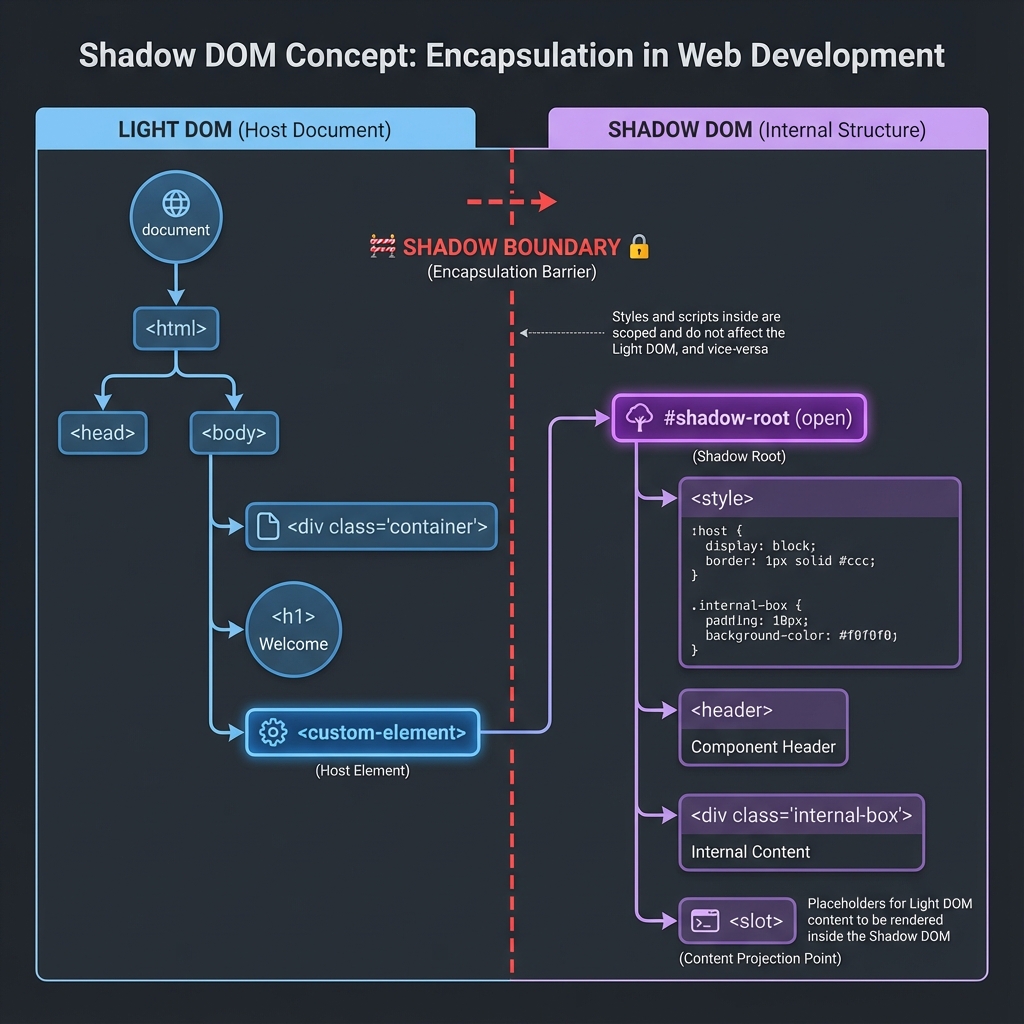
/* Without Shadow DOM: Styles leak everywhere */
.btn { background: red; }   /* Affects ALL .btn on page */

/* With Shadow DOM: Styles are scoped */
/* Inside shadow: */ .btn { background: blue; }
/* These don't affect each other! */
// Without Shadow DOM:
document.querySelector('.btn');  // Finds ANY .btn

// With Shadow DOM:
document.querySelector('.inner-btn');  // Returns null!
// Button is hidden inside shadow root
The component's internal structure is an implementation detail. Users of the component only see:
<custom-button>Click Me</custom-button>
Not the internal <button>, <style>, or implementation details.
| Framework | Shadow DOM Usage | Difficulty for Testing |
|---|---|---|
| Salesforce Lightning (LWC) | Extensive, deeply nested | Very High |
| Angular Material | Optional per component | Medium |
| Ionic Framework | All components | High |
| Shoelace | All components | High |
| SAP UI5 (Web Components) | All components | High |
| Vaadin | All components | High |
| Adobe Spectrum | All components | High |
# This element is inside a shadow root
driver.find_element(By.CSS_SELECTOR, "button.inner-btn")
# NoSuchElementException: Unable to locate element

# Even XPath fails
driver.find_element(By.XPATH, "//button[@class='inner-btn']")
# NoSuchElementException

# The shadow boundary is a HARD WALL
# querySelector() cannot cross it
// This is what Selenium executes internally:
document.querySelector("button.inner-btn")  // Returns null

// The button exists, but it's in a separate DOM tree
// You must access the shadow root first:
const host = document.querySelector("custom-button");
const shadow = host.shadowRoot;
const button = shadow.querySelector("button.inner-btn");  // Found!
Lumos ShadowDOM extends Selenium WebDriver with shadow-aware methods by injecting JavaScript that traverses shadow boundaries.
pip install lumos-shadowdom
from selenium import webdriver
from lumos_shadowdom import patch_driver

# Patch the driver with shadow DOM support
driver = patch_driver(webdriver.Chrome())

driver.get("https://app-with-shadow-dom.com")

# Find element inside shadow DOM
shadow_button = driver.find_shadow("custom-button", "button.inner-btn")
shadow_button.click()

# Find with multiple shadow boundaries
deep_element = driver.find_deep(
    "outer-component",    # Host element 1
    "inner-component",    # Host element 2 (inside first shadow)
    "button.submit"       # Target element (inside second shadow)
)
// Lumos injects this JavaScript into the browser
function findInShadow(hostSelector, targetSelector) {
    // Step 1: Find the host element in light DOM
    const host = document.querySelector(hostSelector);
    if (!host) return null;

    // Step 2: Access its shadow root
    const shadowRoot = host.shadowRoot;
    if (!shadowRoot) {
        // Might be a closed shadow root - more complex handling needed
        return null;
    }

    // Step 3: Query inside the shadow root
    return shadowRoot.querySelector(targetSelector);
}

// For deeply nested shadows, recursive traversal:
function findDeep(...selectors) {
    let current = document;

    for (let i = 0; i < selectors.length - 1; i++) {
        current = current.querySelector(selectors[i]);
        if (!current) return null;
        current = current.shadowRoot;
        if (!current) return null;
    }

    // Last selector is the target element
    return current.querySelector(selectors[selectors.length - 1]);
}
Standard automation tools have zero access to "closed" shadow roots (shadowRoot returns
null).
To bypass this, Lumos uses a technique called Prototype Patching. Before the website's
components even load, Lumos injects a script that replaces Element.prototype.attachShadow
with a custom version that always sets mode: 'open', regardless of what the developer
intended. This "unlocks" the entire component tree for automation.
Real-world example with Salesforce Lightning:
# Lightning Web Components are deeply nested
# Structure: page → record-form → input-field → input → actual <input>

# Deep nesting: light DOM → shadow → shadow → shadow → target
lightning_input = driver.find_deep(
    "lightning-record-form",           # Level 1: The form component
    "lightning-input-field",           # Level 2: Field wrapper
    "lightning-input",                 # Level 3: Input component
    "input[type='text']"               # Level 4: Actual input element
)

lightning_input.send_keys("Hello World")
DOCUMENT
  └── lightning-record-form
        └── #shadow-root
              └── lightning-input-field[data-field="Name"]
                    └── #shadow-root
                          └── lightning-input
                                └── #shadow-root
                                      └── input[type="text"]  ← TARGET
When you don't know the structure, search by visible text:
# Find element by visible text, even inside shadows
submit_button = driver.find_shadow_text("Submit Order")

# Find with partial match
cancel_link = driver.find_shadow_text("Cancel", partial=True)

# Find input by its label (accessibility pattern)
email_input = driver.find_shadow_by_label("Email Address")
When you're exploring an unfamiliar app:
from lumos_shadowdom import discover_selectors

# Analyze page and generate selectors for interactive elements
selectors = discover_selectors(
    driver,
    visual_label="Email Address",  # What the user sees
    element_type="input"           # What type of element
)

print(selectors)
# {
#     'selector': 'ui-input-field::shadow input[name="email"]',
#     'shadow_path': ['ui-form', 'ui-input-field'],
#     'confidence': 0.95,
#     'code': 'driver.find_deep("ui-form", "ui-input-field", "input[name=\\'email\\']")'
# }
Most real apps have both:
# Regular elements in light DOM
page_title = driver.find_element(By.TAG_NAME, "h1")  # Standard Selenium

# Form is in light DOM, but fields are shadow components
form = driver.find_element(By.ID, "contact-form")

# Fields inside shadow components
email_field = driver.find_shadow("custom-input[name='email']", "input")
phone_field = driver.find_shadow("custom-input[name='phone']", "input")

# Submit button might be in light DOM
submit = form.find_element(By.CSS_SELECTOR, "button[type='submit']")

# Or in shadow DOM
submit = driver.find_shadow("custom-button[type='submit']", "button")
Selectors break constantly: - Developers change IDs during refactoring - Class names are generated by CSS-in-JS libraries - DOM structure changes without notice - Dynamic IDs change on every page load
Studies show: 30% of automation engineer time goes to selector maintenance.
# ❌ MOST BRITTLE: Auto-generated IDs
driver.find_element(By.ID, "input_email_7x9k2")  # Changes each build

# ⚠️ SOMEWHAT BRITTLE: Generated class names
driver.find_element(By.CSS_SELECTOR, ".MuiInput-root-1234")  # Material-UI

# ✓ BETTER: data-testid (but requires dev cooperation)
driver.find_element(By.CSS_SELECTOR, "[data-testid='email-input']")

# ✓ MORE RESILIENT: Semantic attributes
driver.find_element(By.CSS_SELECTOR, "input[type='email'][name='email']")

# ✓ MOST RESILIENT: Semantic path with context
driver.find_element(By.XPATH, "//form[@aria-label='Login']//input[@type='email']")
Selector Scout uses AI (Google Gemini) to analyze HTML and generate resilient selectors:
from selector_scout import SelectorScout

scout = SelectorScout(api_key="your-gemini-api-key")

# Paste raw HTML from DevTools
selectors = scout.analyze("""
<div class="form_7x92ka login-module">
    <div class="field_container_abc123">
        <label for="email-1234">Email Address</label>
        <input
            id="email-1234"
            type="email"
            data-testid="login-email"
            class="input_xyz789 form-control"
            placeholder="Enter your email"
        >
    </div>
</div>
""")

print(selectors)
# {
#     "primary": "[data-testid='login-email']",
#     "fallbacks": [
#         "input[type='email'][placeholder='Enter your email']",
#         "input[type='email']",
#         "#email-1234"
#     ],
#     "xpath": "//label[contains(text(),'Email')]/following-sibling::input",
#     "strategy_notes": "Primary uses data-testid (stable). Fallback 1 uses
#                        semantic attributes. Avoid ID as it appears auto-generated."
# }
from selector_scout import SelectorScout

scout = SelectorScout(api_key="your-api-key")

# Analyze entire page
page_selectors = scout.analyze_page(driver)

print(f"Found {len(page_selectors)} interactive elements")
for element in page_selectors:
    print(f"{element['label']}: {element['primary_selector']}")

# Auto-generate Page Object
scout.export_page_object(
    page_selectors,
    output_file="./pages/login_page.py",
    class_name="LoginPage"
)
Generated output:
# login_page.py (auto-generated by Selector Scout)
from selenium.webdriver.common.by import By

class LoginPage:
    # Selectors
    EMAIL_INPUT = (By.CSS_SELECTOR, "[data-testid='login-email']")
    PASSWORD_INPUT = (By.CSS_SELECTOR, "[data-testid='login-password']")
    SUBMIT_BUTTON = (By.CSS_SELECTOR, "button[type='submit']")
    FORGOT_PASSWORD_LINK = (By.XPATH, "//a[contains(text(),'Forgot')]")

    def __init__(self, driver):
        self.driver = driver

    def enter_email(self, email: str):
        self.driver.find_element(*self.EMAIL_INPUT).send_keys(email)

    def enter_password(self, password: str):
        self.driver.find_element(*self.PASSWORD_INPUT).send_keys(password)

    def click_submit(self):
        self.driver.find_element(*self.SUBMIT_BUTTON).click()

    def click_forgot_password(self):
        self.driver.find_element(*self.FORGOT_PASSWORD_LINK).click()
Testing GenAI chatbots breaks traditional automation patterns:
Chatbots type responses token-by-token. There's no single moment where the response is "complete."
Timeline of a chatbot response:
  0ms:   ""
 100ms:  "The"
 200ms:  "The capital"
 300ms:  "The capital of"
 400ms:  "The capital of France"
 500ms:  "The capital of France is"
 600ms:  "The capital of France is Paris"
 700ms:  "The capital of France is Paris."

When do you assert? Any assertion before 700ms will catch incomplete text!
Same prompt yields different responses:
Prompt: "What's 2+2?"

Response 1: "2+2 equals 4."
Response 2: "The answer is 4."
Response 3: "Four."
Response 4: "2 plus 2 is 4!"
Response 5: "The sum of 2 and 2 is 4."

Traditional assertEquals fails even though all are correct!
pip install selenium-chatbot-test
Detects when streaming has truly completed:
from selenium_chatbot_test import StreamWaiter

waiter = StreamWaiter(
    driver,
    response_selector="#chat-response",
    stability_threshold=500,  # ms of no changes = complete
    timeout=30000             # max wait time
)

# Send message
driver.find_element(By.ID, "chat-input").send_keys("What is Python?")
driver.find_element(By.ID, "send-button").click()

# Wait for streaming to complete
response_text = waiter.wait_for_completion()
print(f"Bot responded: {response_text}")
Assert meaning, not exact text:
from selenium_chatbot_test import SemanticAssert

asserter = SemanticAssert(model="all-MiniLM-L6-v2")

# These all mean the same thing
response = "The capital city of France is Paris."

assert asserter.similar(
    response,
    "Paris is France's capital",
    threshold=0.75  # 75% semantic similarity required
)

# Check for concept presence
assert asserter.contains_concept(response, "Paris")
assert asserter.contains_concept(response, "capital")
Track performance metrics:
from selenium_chatbot_test import LatencyMonitor

monitor = LatencyMonitor(driver, response_selector="#chat-response")

driver.find_element(By.ID, "chat-input").send_keys("Hello!")
driver.find_element(By.ID, "send-button").click()

metrics = monitor.measure()

print(f"Time to First Token (TTFT): {metrics.ttft_ms}ms")
print(f"Tokens per second: {metrics.tokens_per_second}")
print(f"Total response time: {metrics.total_time_ms}ms")

# Performance assertions
assert metrics.ttft_ms < 2000, "First token too slow"
assert metrics.tokens_per_second > 20, "Streaming too slow"
Every call to OpenAI/Claude/Gemini costs money and time: - API calls: $0.01-$0.10 per request - Latency: 500ms-5000ms per call - Rate limits: 60-1000 requests/minute - Non-determinism: Same prompt, different results
For a CI pipeline running 50+ tests 10 times daily: - 500+ API calls/day - $50-500/month just for testing - Flaky tests from non-determinism
pip install pytest-mockllm
import pytest
from pytest_mockllm import mock_openai

@pytest.fixture
def mock_llm():
    with mock_openai() as mock:
        # Configure response
        mock.set_response("Hello! How can I help you today?")
        yield mock

def test_chatbot_greeting(mock_llm, chatbot):
    response = chatbot.send_message("Hi!")

    # Response is deterministic and instant
    assert "help you" in response.lower()

    # Verify the mock was called
    assert mock_llm.call_count == 1
    assert "Hi!" in mock_llm.last_prompt
To identify which mock response to return, Pytest-MockLLM uses Request Normalization. It doesn't just look for an exact string match (which fails on minor whitespace or formatting changes). Instead, it strips out non-semantic characters, hashes the resulting prompt, and uses a Levenshtein Distance algorithm for "fuzzy" matching. This ensures your tests remain stable even if the underlying prompt template undergoes minor cosmetic refactoring.
from pytest_mockllm import record_responses, playback_responses

# Step 1: Record real responses (run once)
@record_responses("./cassettes/chat_flow.json")
def test_chat_flow_record():
    response = openai.ChatCompletion.create(
        model="gpt-4",
        messages=[{"role": "user", "content": "Hello"}]
    )
    assert response is not None

# Step 2: Playback in CI (no API calls)
@playback_responses("./cassettes/chat_flow.json")
def test_chat_flow():
    response = openai.ChatCompletion.create(
        model="gpt-4",
        messages=[{"role": "user", "content": "Hello"}]
    )
    # Uses recorded response, instant, free
    assert "Hello" in response.choices[0].message.content
from pytest_mockllm import mock_openai, Chaos

def test_handles_timeout():
    with mock_openai() as mock:
        mock.set_chaos(Chaos.TIMEOUT, probability=1.0)

        with pytest.raises(TimeoutError):
            openai.ChatCompletion.create(...)

def test_handles_rate_limit():
    with mock_openai() as mock:
        mock.set_chaos(Chaos.RATE_LIMIT, probability=1.0)

        # Should trigger retry logic
        response = my_app.call_with_retry(...)
        assert response is not None
from pytest_mockllm import PIIRedactor

# Automatically redact sensitive data from recorded cassettes
redactor = PIIRedactor()
redactor.add_pattern(r"API_KEY_\w+", "[REDACTED_API_KEY]")
redactor.add_pattern(r"\b[A-Za-z0-9._%+-]+@[A-Za-z0-9.-]+\.[A-Z|a-z]{2,}\b", "[EMAIL]")

@record_responses("./cassettes/test.json", redactor=redactor)
def test_with_pii():
    # Personal data automatically scrubbed from recordings
    pass
| Topic | Key Tool | Problem Solved |
|---|---|---|
| Bot Detection | StealthAutomation | Tests blocked by Cloudflare, etc. |
| Shadow DOM | Lumos | Elements hidden in shadow roots |
| AI Selectors | Selector Scout | Brittle, breaking selectors |
| Chatbot Testing | selenium-chatbot-test | Streaming, non-deterministic AI |
| LLM Testing | pytest-mockllm | API costs, flaky AI tests |
"In a remote desktop, all you have are pixels—and your wits."

Remote desktop environments present automation's hardest challenge:
| Environment | DOM Access | Accessibility API | What You Get |
|---|---|---|---|
| Web Browser | ✅ Full | ✅ Full | Elements, attributes, structure |
| Native Desktop | ❌ None | ✅ Partial | Some UI elements via UI Automation |
| Remote Desktop (Citrix/VDI) | ❌ None | ❌ None | Only pixels |
When you connect to a Citrix session, all you receive is a video stream. There's no DOM, no accessibility tree, no UI Automation—just an image.
Approach 1: Coordinate-Based Clicking
# Fragile: Breaks if resolution or window position changes
import pyautogui
pyautogui.click(x=500, y=300)

# One resolution change = all tests broken
Approach 2: Image Template Matching
# Better but slow and resolution-dependent
button_location = pyautogui.locateOnScreen('login_button.png')
pyautogui.click(button_location)

# Problems:
# - Different DPI = template doesn't match
# - Different theme = template doesn't match
# - Very slow (scanning entire screen)
Visual Sonar uses focus ring detection: tracking how the visual focus indicator moves through the interface using keyboard navigation.
┌─────────────────────────────────────────────────────────────────┐
│                   VISUAL SONAR WORKFLOW                          │
├─────────────────────────────────────────────────────────────────┤
│                                                                  │
│  1. SCREEN CAPTURE                                              │
│     Take screenshot of current state                            │
│                                                                  │
│  2. PRESS TAB KEY                                               │
│     Focus moves to next interactive element                     │
│                                                                  │
│  3. SCREEN CAPTURE                                              │
│     Take screenshot of new state                                │
│                                                                  │
│  4. COMPUTE DIFFERENCE                                          │
│     Find pixels that changed between screenshots                │
│                                                                  │
│  5. DETECT FOCUS RING                                           │
│     Changed region = newly focused element                       │
│                                                                  │
│  6. OCR EXTRACTION                                              │
│     Read label text near the focus ring                        │
│                                                                  │
│  7. INTERACTION                                                 │
│     If label matches target, type or click                     │
│                                                                  │
└─────────────────────────────────────────────────────────────────┘
pip install visual-sonar pytesseract

# Also install Tesseract OCR binary:
# Windows: Download from https://github.com/UB-Mannheim/tesseract/wiki
# Mac: brew install tesseract
# Linux: sudo apt-get install tesseract-ocr
from visual_sonar import VisualSonar

sonar = VisualSonar()

# Navigate to a field by tabbing until we find it
sonar.tab_to_field("Username")

# Type in the focused field
sonar.type_text("admin@company.com")

# Tab to next field
sonar.tab_to_field("Password")
sonar.type_text("secretpassword")

# Find and click a button by visible text
sonar.click_text("Sign In")

# Or by template image
sonar.click_image("templates/login_button.png")
from visual_sonar import VisualSonar, FocusDetector

detector = FocusDetector(
    focus_ring_colors=["#0078d4", "#005a9e"],  # Common blue focus colors
    min_focus_area=100,                         # Minimum pixel area for focus ring
    max_focus_area=50000,                       # Maximum pixel area
    difference_threshold=30,                    # Pixel intensity difference threshold
)

sonar = VisualSonar(focus_detector=detector)

# The algorithm:
# 1. Capture baseline screenshot
# 2. Press TAB key
# 3. Capture new screenshot
# 4. Compute absolute difference between images
# 5. Find contiguous region of changed pixels
# 6. Verify size matches expected focus ring
# 7. Calculate centroid = element center
from visual_sonar import VisualSonar, DPIConfig

# Handle mixed DPI scenarios (common in remote desktop)
dpi_config = DPIConfig(
    auto_detect=True,           # Auto-detect per-monitor DPI
    reference_dpi=96,           # Base DPI for template images
    scaling_interpolation="LANCZOS"  # High-quality scaling
)

sonar = VisualSonar(dpi_config=dpi_config)
Traditional mutation testing modifies source code to verify tests catch bugs. UI Mutation Testing modifies the UI itself:
TRADITIONAL MUTATION TESTING:
  1. Take source code
  2. Introduce bug (mutate)
  3. Run tests
  4. If tests pass → weak test coverage (bug not detected)
  5. If tests fail → good coverage (bug detected)

UI MUTATION TESTING:
  1. Load application
  2. Mutate UI (disable button, hide element, change text)
  3. Run automation tests
  4. If tests pass → "zombie tests" that don't check properly
  5. If tests fail → resilient tests that validate correctly
Many automation tests pass without actually validating anything:
# This test might be a zombie
def test_submit_form():
    driver.find_element(By.ID, "name").send_keys("John")
    driver.find_element(By.ID, "submit").click()
    # No assertion! Test passes even if form is broken
Project Vandal helps identify these weak tests.
pip install vandal-testing
from vandal import Vandal, MutationType

vandal = Vandal(driver)

# Apply mutation: disable the submit button
with vandal.mutate(
    selector="#submit-button",
    mutation=MutationType.STEALTH_DISABLE
):
    # Run your test in this context
    # If test still passes, it's weak!
    run_submit_test()

# Mutation automatically reverted after context exits
Makes element non-functional but visually identical:
MutationType.STEALTH_DISABLE
# JavaScript: element.disabled = true; (for buttons)
# Or: element.style.pointerEvents = 'none';
Hides element from interaction but keeps it in DOM:
MutationType.GHOST_ELEMENT
# JavaScript: element.style.visibility = 'hidden';
# element.style.height = '0'; element.style.overflow = 'hidden';
Changes text content to verify tests actually read values:
MutationType.DATA_SABOTAGE
# JavaScript: element.textContent = 'VANDALIZED';
# element.value = 'WRONG_VALUE';
Breaks JavaScript event handlers:
MutationType.LOGIC_SABOTAGE
# JavaScript: Removes all event listeners from element
from vandal import VandalRunner

runner = VandalRunner(driver)

# Run mutation testing across your test suite
report = runner.run_mutations(
    test_function=run_checkout_tests,
    selectors=["#add-to-cart", "#checkout", "#pay-now"],
    mutations=[MutationType.STEALTH_DISABLE, MutationType.GHOST_ELEMENT]
)

print(f"Mutation Score: {report.score}%")
# 100% = all mutations detected (tests failed as expected)
# <100% = some mutations not detected (zombie tests exist)

for result in report.results:
    if result.mutation_survived:
        print(f"⚠️ ZOMBIE: {result.test_name} didn't detect {result.mutation}")
Standard pytest output serves developers:
test_login.py::test_valid_login PASSED
test_login.py::test_invalid_password FAILED
test_checkout.py::test_add_to_cart PASSED
But stakeholders need: - Executive Summary: Can we release? - Quality Metrics: How stable is the system? - Trend Analysis: Are we improving over time? - Visual Evidence: What was actually tested?
pip install pytest-glow-report
# pytest.ini
[pytest]
addopts = --glow-report=./reports/ --glow-report-title="E-Commerce Test Suite"
The report header shows: - Overall pass rate with RAG (Red/Amber/Green) status - Quality Score (0-100) - Release Recommendation (Go/No-Go/Conditional) - Test execution time - Environment information
# Quality Score formula:
quality_score = (
    pass_rate * 0.5 +           # 50% weight: raw pass rate
    stability * 0.25 +          # 25% weight: test stability over time
    coverage * 0.15 +           # 15% weight: code coverage
    speed * 0.10                # 10% weight: execution time vs baseline
)

# Ratings:
# 90-100: Excellent (Release Ready) ✅
# 75-89:  Good (Minor Issues) ⚠️
# 60-74:  Fair (Needs Attention) ⚠️
# <60:    Poor (Block Release) ❌
import pytest

def test_checkout(driver, glow_report):
    driver.get("https://shop.example.com/checkout")

    # Capture step screenshot
    glow_report.screenshot(driver, "checkout_page_loaded")

    driver.find_element(By.ID, "pay-now").click()

    # Capture result
    glow_report.screenshot(driver, "payment_result")

    assert "Order Confirmed" in driver.page_source
Similar failures are automatically grouped:
- ElementNotInteractableException in login flow (5 occurrences)
- Timeout waiting for #dashboard (3 occurrences)
- Database connection refused (2 occurrences)
A well-architected framework: - Reduces maintenance by 60% - Enables parallel test development - Simplifies onboarding new team members - Isolates changes to specific layers
┌─────────────────────────────────────────────────────────────────┐
│                       TEST LAYER                                 │
│  • Test scenarios and cases                                     │
│  • Business-readable specifications                             │
│  • NO technical implementation details                          │
│                                                                  │
│  test_checkout.py:                                              │
│    def test_guest_can_complete_purchase():                      │
│        cart.add_product("SKU-123")                              │
│        checkout.complete_as_guest()                             │
│        assert order_confirmation.is_displayed()                 │
└───────────────────────────┬─────────────────────────────────────┘
                            │
                            ▼
┌─────────────────────────────────────────────────────────────────┐
│                     BUSINESS LAYER                               │
│  • Page Objects / Screen Objects                                │
│  • Workflow/Journey abstractions                                │
│  • Domain-specific language                                     │
│                                                                  │
│  cart_page.py:                                                  │
│    class CartPage:                                              │
│        def add_product(self, sku):                              │
│            self.search_box.enter(sku)                           │
│            self.add_button.click()                              │
└───────────────────────────┬─────────────────────────────────────┘
                            │
                            ▼
┌─────────────────────────────────────────────────────────────────┐
│                       CORE LAYER                                 │
│  • Base element classes                                         │
│  • Common actions (click, type, select)                         │
│  • Assertion helpers                                            │
│  • Data utilities                                               │
│                                                                  │
│  base_element.py:                                               │
│    class BaseElement:                                           │
│        def click(self):                                         │
│            self.wait_for_clickable()                            │
│            self._element.click()                                │
└───────────────────────────┬─────────────────────────────────────┘
                            │
                            ▼
┌─────────────────────────────────────────────────────────────────┐
│                  INFRASTRUCTURE LAYER                            │
│  • WebDriver management                                         │
│  • Configuration loading                                        │
│  • Reporting integration                                        │
│  • CI/CD hooks                                                  │
│                                                                  │
│  driver_factory.py:                                             │
│    class DriverFactory:                                         │
│        def create(self, browser, headless):                     │
│            ...                                                  │
└─────────────────────────────────────────────────────────────────┘
| Layer | Knows About | Does NOT Know About |
|---|---|---|
| Test | Business | Core, Infrastructure |
| Business | Core | Infrastructure |
| Core | Infrastructure | Tests, Business logic |
| Infrastructure | Nothing above | — |
# ❌ DON'T: Create test data through UI (slow, fragile)
def test_order_history(driver):
    login(driver)
    add_product(driver)       # Takes 30 seconds
    checkout(driver)          # Takes another 30 seconds
    navigate_to_history(driver)
    assert_order_visible(driver)

# ✅ DO: Seed data via API, test only the UI part you care about
def test_order_history(driver, api_client):
    # Fast API-based setup (< 1 second)
    user = api_client.create_user()
    order = api_client.create_order(user.id, products=["SKU-1"])

    # Restore session
    login_via_teleport(driver, user)

    # Only test the UI part we're verifying
    navigate_to_history(driver)
    assert_order_visible(driver, order.id)
name: Cross-Browser Tests

on: [push, pull_request]

jobs:
  test:
    runs-on: ubuntu-latest
    strategy:
      fail-fast: false
      matrix:
        browser: [chrome, firefox, edge]
        python-version: ['3.10', '3.11', '3.12']

    steps:
      - uses: actions/checkout@v4

      - name: Setup Python ${{ matrix.python-version }}
        uses: actions/setup-python@v5
        with:
          python-version: ${{ matrix.python-version }}

      - name: Run tests on ${{ matrix.browser }}
        run: pytest tests/ --browser=${{ matrix.browser }}
      - name: Upload test reports
        if: always()
        uses: actions/upload-artifact@v4
        with:
          name: test-reports-${{ matrix.browser }}
          path: |
            reports/
            screenshots/
          retention-days: 30
      - name: Cache pip packages
        uses: actions/cache@v4
        with:
          path: ~/.cache/pip
          key: ${{ runner.os }}-pip-${{ hashFiles('requirements.txt') }}
          restore-keys: |
            ${{ runner.os }}-pip-
Windows Virtual Desktop (Azure Virtual Desktop) sessions present: - Different connection methods than Citrix - Azure AD authentication - Session persistence challenges - Scaling across multiple hosts
pip install wvdautomation
from wvdautomation import WVDSession

session = WVDSession(
    workspace_url="https://rdweb.wvd.microsoft.com/...",
    username="user@company.com",
    password=os.environ["WVD_PASSWORD"]
)

with session.connect() as desktop:
    # Now you have a Pyautogui-like interface
    desktop.click_text("Microsoft Edge")
    desktop.wait_for_window("Edge")
    desktop.type_text("https://internal-app.company.com")
Automation estimation is notoriously inaccurate: - "This should take 2 hours" → 2 days - "Simple login automation" → 3 weeks (with SSO, MFA, session handling) - "Just automate the happy path" → But what about error states?
Rule: If a task can't be broken into pieces under 4 hours, you don't understand it yet.
BAD:  "Automate login flow" (1 vague task)

GOOD: "Automate login flow":
  ├── Analyze login page structure (2h)
  ├── Create LoginPage object (2h)
  ├── Implement valid login test (2h)
  ├── Handle invalid credentials (1h)
  ├── Handle locked account (1h)
  ├── Handle SSO redirect (4h)
  ├── Handle MFA flow (4h)
  └── Create test data fixtures (2h)

TOTAL: 18h (not "4 hours")
| Complexity | Examples | Multiplier |
|---|---|---|
| SIMPLE | Static content, standard forms | 1x |
| MEDIUM | Dynamic content, validation, modals | 2x |
| COMPLEX | Multi-step wizards, real-time updates, file handling | 4x |
| Component | Simple | Medium | Complex |
|---|---|---|---|
| Page Object | 2h | 4h | 8h |
| Form Field | 0.5h | 1h | 2h |
| Table/Grid | 2h | 4h | 8h |
| Modal/Dialog | 1h | 2h | 4h |
| API Integration | 2h | 4h | 8h |
Environment factors:
  × 1.5 for legacy system without data-testid attributes
  × 1.3 for Shadow DOM heavy apps
  × 1.5 for mobile/responsive testing
  × 2.0 for first project in new technology

Team factors:
  × 0.8 if team has done similar before
  × 1.5 for new team members
  × 1.2 for distributed teams
Confidence level → Buffer:
  High confidence (done before):   +20%
  Medium confidence (similar):     +40%
  Low confidence (new territory):  +80%
Automation often requires: - Verifying data persistence - Seeding test data - Cleaning up after tests - Diagnosing failures
-- ❌ BAD: Function on column prevents index use
SELECT * FROM orders WHERE YEAR(created_at) = 2024;

-- ✅ GOOD: SARGable (Search ARGument ABLE)
SELECT * FROM orders
WHERE created_at >= '2024-01-01'
  AND created_at < '2025-01-01';
-- ❌ BAD: Retrieves way more data than needed
SELECT * FROM users WHERE id = 123;

-- ✅ GOOD: Only needed columns
SELECT id, email, name FROM users WHERE id = 123;
-- For frequently queried columns:
CREATE INDEX idx_users_email ON users(email);

-- For composite queries:
CREATE INDEX idx_orders_user_date ON orders(user_id, created_at);
Despite being "legacy," UFT/QTP established patterns still valuable today:
# Modern implementation in Python
class ObjectRepository:
    class Amazon:
        class HomePage:
            SEARCH_BOX = (By.ID, "twotabsearchtextbox")
            SEARCH_BUTTON = (By.ID, "nav-search-submit-button")

        class ResultsPage:
            PRODUCT_LIST = (By.CSS_SELECTOR, "div.s-result-item")
from functools import wraps

def with_recovery(max_retries=3):
    def decorator(func):
        @wraps(func)
        def wrapper(self, *args, **kwargs):
            for attempt in range(max_retries):
                try:
                    return func(self, *args, **kwargs)
                except UnexpectedAlertPresentException:
                    self.driver.switch_to.alert.dismiss()
                except StaleElementReferenceException:
                    time.sleep(0.5)
            raise Exception(f"Failed after {max_retries} recovery attempts")
        return wrapper
    return decorator

While cloud-based APIs like OpenAI's GPT-4 kickstarted the AI revolution, the future of enterprise test automation lies in Local Small Language Models (SLMs). Organizations are increasingly blocking cloud AI due to security, privacy, and cost concerns. Running models like Llama-3 (8B) or Phi-3 locally ensures that your proprietary application code and sensitive test data never leave your infrastructure.
When a locator fails, instead of failing the test immediately, we can use a local model to analyze the page state and find the correct element without sending HTML to the cloud.
from selenium.webdriver.common.by import By
import requests # Using a local Ollama server

class LocalHealingLocator:
    def __init__(self, driver, model="llama3:8b"):
        self.driver = driver
        self.model = model
        self.api_url = "http://localhost:11434/api/generate"

    def find_element(self, locator, description):
        try:
            return self.driver.find_element(*locator)
        except NoSuchElementException:
            return self._heal_with_local_slm(locator, description)

    def _heal_with_local_slm(self, failed_locator, description):
        # Extract small, relevant DOM context to stay within local RAM limits
        context = self.driver.execute_script("return document.body.innerText.substring(0, 2000)")

        prompt = f"Failed Locator: {failed_locator}\nGoal: Find '{description}'\nContext: {context}\nReturn only a valid CSS selector."

        response = requests.post(self.api_url, json={
            "model": self.model,
            "prompt": prompt,
            "stream": False
        })

        suggested_selector = response.json()['response'].strip()
        return self.driver.find_element(By.CSS_SELECTOR, suggested_selector)
Local SLMs have limited context windows. Instead of sending the entire `page_source`, send only relevant chunks (summaries or localized DOM sections) to maintain high accuracy on 8GB VRAM hardware.
Large Language Models can generate test cases from requirements, user stories, or even application code.
def generate_test_cases(user_story: str) -> list[dict]:
    """
    Uses AI to generate test scenarios from a user story.
    """
    prompt = f"""
    Given this user story:
    {user_story}

    Generate comprehensive test cases in the following JSON format:
    [
        {{
            "name": "test case name",
            "preconditions": ["list of setup steps"],
            "steps": ["step 1", "step 2"],
            "expected_result": "what should happen",
            "test_type": "positive|negative|edge_case"
        }}
    ]

    Include positive, negative, and edge cases.
    """

    response = openai.ChatCompletion.create(
        model="gpt-4",
        messages=[{"role": "user", "content": prompt}],
        temperature=0.7
    )

    return json.loads(response.choices[0].message.content)

# Example usage
user_story = """
As a user, I want to reset my password via email,
so that I can regain access to my account if I forget my password.
Acceptance criteria:
- User enters email and clicks "Forgot Password"
- System sends reset link if email exists
- Link expires after 24 hours
- User can set new password (min 8 chars, 1 uppercase, 1 number)
"""

test_cases = generate_test_cases(user_story)
Traditional pixel-by-pixel comparison fails on dynamic content. AI-powered visual testing understands what should look different vs. what's a bug.
| Traditional | AI-Powered |
|---|---|
| Fails on date/time changes | Ignores dynamic content |
| Fails on font rendering differences | Understands "same enough" |
| Many false positives | Reports only real issues |
| Requires exact match | Uses semantic understanding |
When your application uses AI, testing becomes complex. How do you test non-deterministic outputs without blowing your budget?
Instead of calling real external LLMs (expensive, slow), use pytest-mockllm with a local SLM backbone to simulate edge-case responses:
import pytest
from pytest_mockllm import mock_openai

@pytest.fixture
def mock_llm():
    with mock_openai() as mock:
        mock.add_response(
            contains="summarize",
            response="This is a mock summary for testing purposes."
        )
        yield mock

def test_document_summarization(mock_llm):
    result = summarize_document("Long document text...")

    assert "mock summary" in result.lower()
    assert mock_llm.call_count == 1
Chatbots stream responses token-by-token. Your tests need to handle this:
from selenium_chatbot_test import ChatbotTester

def test_streaming_chatbot():
    tester = ChatbotTester(driver)

    # Send message and wait for complete response
    response = tester.send_and_wait(
        message="Explain Python decorators",
        timeout=30,
        stream_complete_marker="..."  # Indicates response finished
    )

    assert "function" in response.lower()
    assert len(response) > 100  # Substantial response
| Tool | Purpose | When to Use |
|---|---|---|
| Selector Scout | AI-powered locator generation | Building new Page Objects |
| Pytest-MockLLM | Mock LLM responses in tests | Testing AI-powered features |
| Selenium Chatbot Test | Test streaming AI interfaces | Chatbot/assistant testing |
| Applitools | Visual AI testing | UI regression detection |
| Testim | Self-healing automation | Enterprise-scale web testing |
"AI doesn't replace testers—it makes good testers exceptional and eliminates the tedious parts of the job."
The previous 23 chapters have focused on individual tools: Waitless for stability, SB Stealth for evasion, Visual Guard for perception, and Selector Scout for intelligence. But in a modern enterprise environment, these tools shouldn't act in isolation. They need a "brain."
The Sentinel is the proposed master orchestrator that ties all these components into a single, unified agentic system. It doesn't just "run tests"; it governs the quality lifecycle autonomously.
┌─────────────────────────────────────────────────────────┐
│                    SENTINEL ORCHESTRATOR                │
│             (The Master Agentic Controller)             │
└───────────────┬───────────────┬───────────────┬─────────┘
                │               │               │
        ┌───────▼───────┐ ┌─────▼─────┐ ┌───────▼───────┐
        │   STABILITY   │ │   STEALTH   │ │  PERCEPTION   │
        │  (Waitless)   │ │(SB Stealth) │ │(Visual Guard) │
        └───────┬───────┘ └─────┬─────┘ └───────┬───────┘
                │               │               │
        ┌───────▼───────┴───────▼───────────────▼───────┐
        │            LOCAL SLM BRAIN (Llama-3)          │
        │    (Reasoning, Healing, Decision Making)      │
        └───────────────────────────────────────────────┘
The Sentinel operates on a continuous loop of Observe → Orient → Decide → Act:
The power of the Sentinel isn't in any single tool, but in the glue that connects them. When stability signals from Waitless inform the reasoning of the SLM, you move from "Automated Testing" to "Autonomous Quality Assurance."
As an Automation Architect, your role is evolving from "Script Writer" to "Agent Orchestrator." By mastering the tools in this playbook and understanding how to unify them under a Sentinel-style framework, you are positioning yourself at the absolute forefront of the industry.
"The ultimate goal of automation isn't to run tests faster—it's to create systems that can think, adapt, and protect the application with minimal human intervention."
Traditional test automation focuses on the ground: selectors, waits, and handling every possible UI obstacle. But what if we could navigate like a dung beetle—by looking at the stars?
There is a species of dung beetle that can navigate thousands of miles in a perfectly straight line. It doesn't have a map. It doesn't know where every rock or hole is. It simply looks up at the Milky Way. By orienting itself to a "Universal Constant" that never changes, it can overcome any obstacle on the ground without getting lost.
This biological insight is the foundation of Constellation Based Automation (CBA).
"Don't look at the ground; look at the Starlight."
The Page Object Model (POM) was built for a simpler web. Today's web is chaotic, asynchronous, and filled with "Noise"—popups, overlays, dynamic content, and A/B tests. In a typical POM setup, the test script is a micro-manager. It spends 90% of its time on environment maintenance rather than business logic:
// Traditional POM: Micro-managing the environment
if (popup.isDisplayed()) {
    popup.close();
}
if (banner.isDisplayed()) {
    banner.dismiss();
}
await page.waitForSpinner();
await checkoutButton.click();
The test's intent is a single line: "click checkout." But it's buried under environment noise handling.
CBA introduces a philosophical shift: separate the "Animal" (your test's intent) from the "Environment" (the DOM noise). The environment is managed by Sentinels—specialized, language-agnostic agents that clear the path so your test can focus on business logic.
Instead of a monolithic library, CBA uses a Sidecar Architecture communicating over a JSON-RPC message bus (WebSockets):
┌───────────────────────────────────────────────────────────────────────────┐
│                           THE STARLIGHT PROTOCOL                           │
└───────────────────────────────────────────────────────────────────────────┘

┌─────────────────────────────────────────────────────────────────────────┐
│                    HUB (The Flight Controller / Node.js)                  │
│     Owns the browser • Broadcasts Starlight (DOM mutations, network)     │
└────────────┬──────────────────┬──────────────────┬───────────────────────┘
             │                  │                  │
     ┌───────▼────────┐  ┌──────▼──────┐  ┌────────▼────────┐
     │   JANITOR      │  │   WAITER    │  │   HISTORIAN     │
     │   (Python/AI)  │  │    (Go)     │  │   (Node.js)     │
     │ Clears popups  │  │  Network    │  │ State & Auth    │
     │   & overlays   │  │   Pulse     │  │  Persistence    │
     └────────────────┘  └─────────────┘  └─────────────────┘
| Sentinel | Language | Responsibility |
|---|---|---|
| The Hub | Node.js | Owns the browser, broadcasts "Starlight" (DOM mutations, network pulses) |
| The Janitor | Python/AI | Watches for popups and overlays, clearing them before the main script knows they existed |
| The Waiter | Go | Monitors the "Network Pulse" to prevent actions during instability |
| The Historian | Node.js | Manages the "State Constellation" (auth tokens and session persistence) |
The Hub and Sentinels communicate using JSON-RPC 2.0 standardized signals:
{
  "jsonrpc": "2.0",
  "method": "starlight.[action]",
  "params": { ... },
  "id": "unique-id"
}
| Method | Purpose |
|---|---|
starlight.registration |
Sentinel announces itself to the Hub |
starlight.pre_check |
Hub asks Sentinels: "Is the path clear?" |
starlight.hijack |
Sentinel takes control to clear an obstacle |
starlight.resume |
Sentinel returns control after clearing |
starlight.pulse |
Continuous network/DOM state signals |
The Hub enforces a 200ms handshake budget. If a Sentinel doesn't respond to a
PRE_CHECK within this window, the Hub proceeds without waiting. This ensures high-performance
automation while allowing for defensive recovery.
With CBA, your test code becomes pure business intent:
// Intent Layer: Pure and simple
await navigation.to("/checkout");
// The Janitor Sentinel clears the "10% Off" popup automatically in the background
await checkout.submit();
No if (popup.isDisplayed()). No waitForSpinner(). The Sentinels handle the noise so
your test can focus on the goal.
CBA doesn't just say "Pass." It generates a Hero Story—a visual timeline that distinguishes between:
Every execution generates a report.html with:
if (popup) { click }. It assumes the
environment is being filtered for noise.# Clone the repository
git clone https://github.com/godhiraj-code/cba.git
cd cba
# Install Node dependencies
npm install ws playwright nanoid
npx playwright install chromium
# Install Python dependencies
pip install websockets
# 1. Start the Hub
node src/hub.js

# 2. Start the Janitor (Background)
python sentinels/janitor.py

# 3. Run the Intent Script
node src/intent.js
Stop building scripts that are afraid of the ground. Build a system that navigates by the stars. When your tests orient toward universal constants (business intent) rather than transient obstacles (popups, spinners, network delays), they become truly resilient.
"The dung beetle doesn't memorize the location of every rock. It trusts the Milky Way. Your automation should do the same."
Every project in this book is open-source and available:
| Tool | Problem | GitHub | PyPI | Blog |
|---|---|---|---|---|
| Waitless | Flaky tests | github.com/godhiraj-code/waitless | PyPI | Blog |
| Visual Guard | Visual regression | github.com/godhiraj-code/visual-guard | PyPI | Blog |
| Selenium Teleport | Slow authentication | github.com/godhiraj-code/selenium-teleport | PyPI | Blog |
| StealthAutomation | Bot detection | github.com/godhiraj-code/stealthautomation | PyPI | Blog |
| Lumos ShadowDOM | Shadow DOM traversal | github.com/godhiraj-code/lumos-shadowdom | PyPI | Blog |
| Chatbot Test | AI chatbot testing | github.com/godhiraj-code/selenium-chatbot-test | PyPI | Blog |
| pytest-mockllm | LLM testing | github.com/godhiraj-code/pytest-mockllm | PyPI | Blog |
| Visual Sonar | Remote desktop & VDI automation | github.com/godhiraj-code/visual-sonar | PyPI | Blog |
| pytest-glow-report | Enterprise reporting | github.com/godhiraj-code/pytest-glow-report | PyPI | Blog |
| Project Vandal | UI mutation testing | github.com/godhiraj-code/vandal | PyPI | Blog |
| Exception | Cause | Solution |
|---|---|---|
NoSuchElementException |
Element not in DOM | Wait for presence, check selector |
ElementNotInteractableException |
Element exists but can't be interacted with | Wait for clickable, check visibility |
StaleElementReferenceException |
Element was removed/re-added to DOM | Re-find element, use Waitless |
TimeoutException |
Wait condition not met in time | Increase timeout, check condition |
WebDriverException |
Browser/driver communication issue | Restart browser, check versions |
ElementClickInterceptedException |
Another element covering target | Scroll to view, wait for overlays |
| Term | Definition |
|---|---|
| DOM | Document Object Model - tree structure of HTML elements |
| Shadow DOM | Encapsulated DOM tree hidden from main document |
| Light DOM | Regular DOM, visible to querySelector |
| WebDriver | W3C protocol for browser automation |
| CDP | Chrome DevTools Protocol - direct browser control |
| Flakiness | Tests that intermittently pass/fail without code changes |
| SSIM | Structural Similarity Index - perceptual image comparison |
| pHash | Perceptual Hash - image fingerprinting algorithm |
| SARGable | Search ARGument-able - query can use indexes |
| Mutation Testing | Introducing bugs to verify test coverage |
| TTFT | Time to First Token - latency metric for streaming |
After 10+ years of building, breaking, and rebuilding automation frameworks, these truths have emerged:
Every flaky test has a root cause. The tools in this book—Waitless, intelligent waits, stability detection—exist because understanding those causes leads to solutions.
Browsers weren't designed for automation. They load asynchronously, animate without notice, and guard their shadows. Success comes from instrumenting the browser itself, not fighting its nature.
A fast, flaky test suite is worse than no suite at all. It generates false signals, wastes developer time, and erodes trust. Build stability first, then optimize for speed.
Automation isn't about coverage percentages or green dashboards. It's about catching defects before they reach users. Every test should have a clear purpose: what bug would it catch?
Hours spent building reusable tools save days of repetitive work. The projects in this book exist because solving problems once, properly, beats solving them poorly forever.
Every project in this book is open-source and available:
| Tool | Problem | GitHub | PyPI | Blog |
|---|---|---|---|---|
| Waitless | Flaky tests | github.com/godhiraj-code/waitless | PyPI | Blog |
| Visual Guard | Visual regression | github.com/godhiraj-code/visual-guard | PyPI | Blog |
| Selenium Teleport | Slow authentication | github.com/godhiraj-code/selenium-teleport | PyPI | Blog |
| StealthAutomation | Bot detection | github.com/godhiraj-code/stealthautomation | PyPI | Blog |
| Lumos ShadowDOM | Shadow DOM traversal | github.com/godhiraj-code/lumos-shadowdom | PyPI | Blog |
| Chatbot Test | AI chatbot testing | github.com/godhiraj-code/selenium-chatbot-test | PyPI | Blog |
| pytest-mockllm | LLM testing | github.com/godhiraj-code/pytest-mockllm | PyPI | Blog |
| Visual Sonar | Remote desktop & VDI automation | github.com/godhiraj-code/visual-sonar | PyPI | Blog |
| pytest-glow-report | Enterprise reporting | github.com/godhiraj-code/pytest-glow-report | PyPI | Blog |
| Project Vandal | UI mutation testing | github.com/godhiraj-code/vandal | PyPI | Blog |
© 2025 Dhiraj Das. All rights reserved.